
The new Wingtra app is only compatible with Tab Active 3 or Premium tablet.
Contact your reseller if you have an older tablet version (Tab Active 2) to upgrade.
Do you work in a cloud-restricted environment?
If your organization cannot use cloud-based tools, please continue using WingtraPilot and WingtraHub for now. A local workflow will be supported in the new app soon—we’ll notify you once it's available.
Onboarding video (Follow the instructions below after watching this video)
For Users Without a WingtraCLOUD Account
Step 1: Create Your WingtraCLOUD Account
-
Use this link to create your WingtraCLOUD account (you will need to use your existing myWingtra credentials to log in and create your organization’s cloud account
Note: Only one account per organization should be created. Additional users can be added by the first user in Settings > Users & Organisation
Step 2: Prepare the Tablet
See Update Instructions below.
Step 3: Install the Wingtra App
See Installation Instructions below.
For Users With an Existing WingtraCLOUD Account
Step 1: Prepare the Tablet
See Update Instructions below.
Step 2: Install the Wingtra App
See Installation Instructions below.
What If I Created a Duplicate Organization?
If you accidentally created a second tenant (organization):
-
Open the Wingtra app on your tablet or log in to your WingtraCLOUD account on the browser (cloud.wingtra.com)
-
Navigate to Settings > Users & Organisation
-
Scroll to the bottom to find the Danger Zone
-
Click Delete Organisation
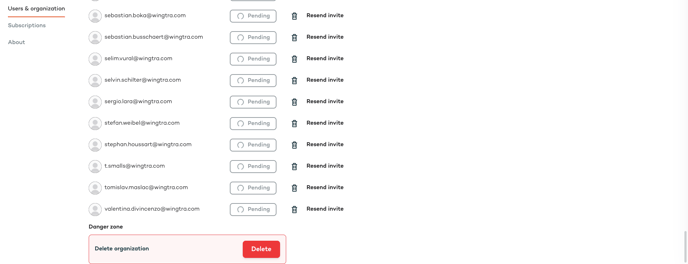
Note: It takes 1 day to delete the account and unlink your email. This delay ensures safety and avoids accidental data loss. Once unlinked, your email can be added to the correct organization.
Prepare the Tablet: Update Android and WebView
Check Android Version
-
Go to Settings > About tablet
-
If you're on Android 13 → You're all set
-
If you're on Android 11 or 12 → continue below
Unlock Android Updates
-
Go to Settings > About tablet > Software Information > Knox Configure
-
Tap Update Configuration > Apply Latest Profile
-jpg.jpeg?width=341&height=546&name=Screenshot_20250403-125805_KC%20Client%20(1)-jpg.jpeg)
-
You may see a message:
"Your tablet isn’t registered to Wingtra AG – Knox Configure will be uninstalled"
-jpg.jpeg?width=279&height=446&name=Screenshot_20250404-114441_Configuration%20service%20(1)-jpg.jpeg)
-
Once this completes, your tablet is ready for software updates
Tip: If you don’t see Knox Configure, your device is already unlocked.
Update Android
-
Go to Settings > Software update > Download and install
-
Updates are incremental — may take 2–3 cycles if you're on Android 10
Issue? If the update option is greyed out, contact support@wingtra.com.
Update WebView
-
Download and install both required WebView files from this link
-
Follow the installation prompts
Install the Wingtra App
Step 1: Download the APK
-
Download the latest
.apkfile from your browser app drop down menu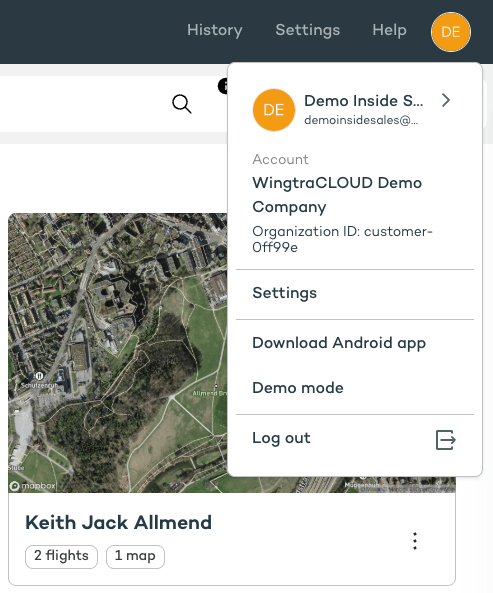
Step 2: Transfer the APK to the Tablet
-
Copy via SD card (recommended), email, file sharing service, or download directly on the tablet browser
Step 3: Allow Installation from Unknown Sources
-
Go to Settings > Security (or Privacy) > Install unknown apps
-
Enable installation from unknown sources
Step 4: Install the App
-
Locate the
.apkfile (usually in Downloads) -
Tap it and follow the on-screen instructions
Step 5: Launch and Confirm
-
Open the app
-
You’re now set up and will receive in-app update notifications
Need Help?
For assistance, contact support@wingtra.com