The WingtraRAY and WingtraOne SD cards can be formatted through the App or by using the camera, the tablet, or a computer. Formatting will delete all data on the SD card, therefore make sure to save all data you require on another device. We highly recommend to format the camera SD cards regularly (e.g. every 10 flights). To ensure smooth data acquisition, ensure the used SD cards fulfill the requirements. (WingtraRAY and WingtraOne compatible SD cards)
- Fromat SD card via the App
- Format SD card with the RX1 camera
- Format SD card with the a6100 camera
- Format SD card with the tablet
- Format SD card with a computer
- Format MicaSense SD cards
- Format LIDAR USB Drive
In case formatting the SD card fails, check out the troubleshooting section.
Format SD card via the App
- Power up the drone and wait until telemetry connection is established
- Click on the orange antenna symbol on the top of the screen and then on the edit button next to the camera settings
- Click on "Format SD card"
Format SD card with the RX1 camera
- Power up the drone and wait until the mass storage mode message on the camera display disappears
- Press menu, go to the Suitcase symbol and then to page 5 as shown in the picture
- Select Format and confirm
- Select New Folder to create a new folder
- Select REC Folder and confirm the default folder

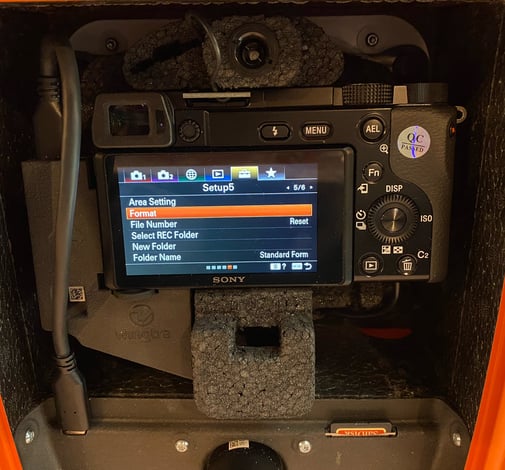
Format SD card with the a6100 camera
- Power up the drone and wait until the mass storage mode message on the camera display disappears
- Press menu, go to the Suitcase symbol and then to page 5 as shown in the picture
- Select Format and confirm
- Select New Folder to create a new folder
- Select REC Folder and confirm the default folder
Format SD card with the tablet
1. Make sure the drone is not powered
2. Take out the SD card from the camera
3. Insert the SD card into the tablet (by using tablet SD card adapter)
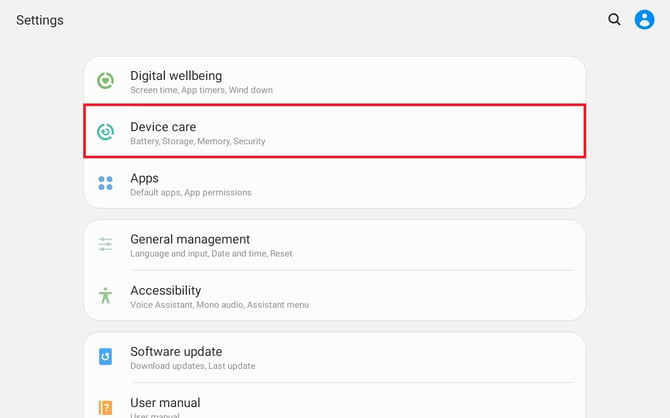
4. Open the "Settings" app of the tablet
5. Browse to "Device Care" and click on it
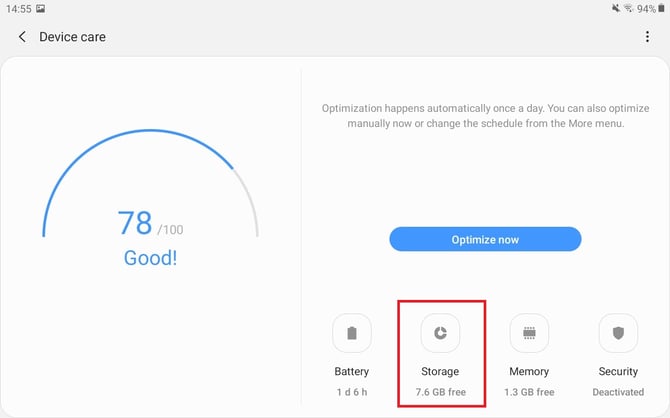
6. Select "Storage"
7. Click on the three dots on the top right
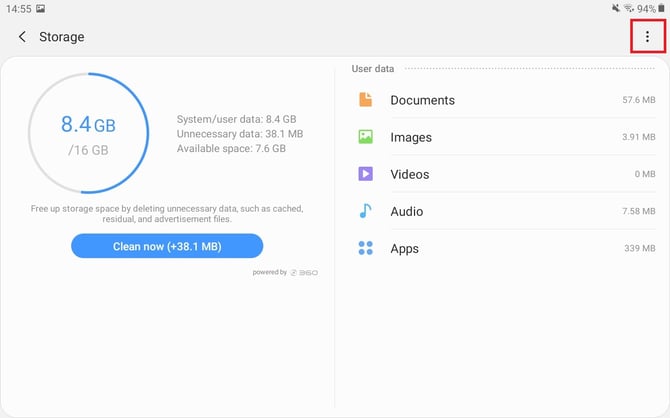
8. Click on "Storage settings" on the top right
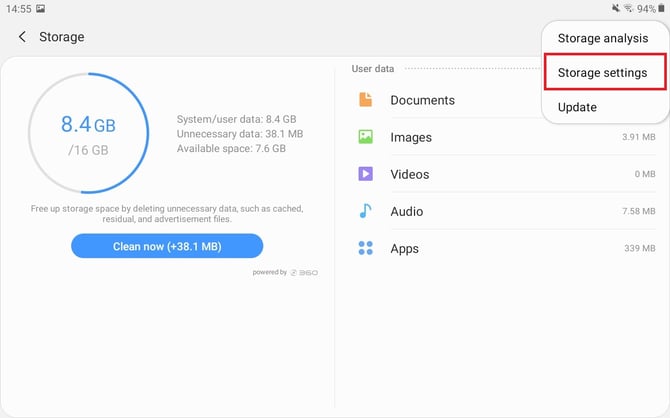
9. Select the SD card by clicking on "Lexar USB drive"
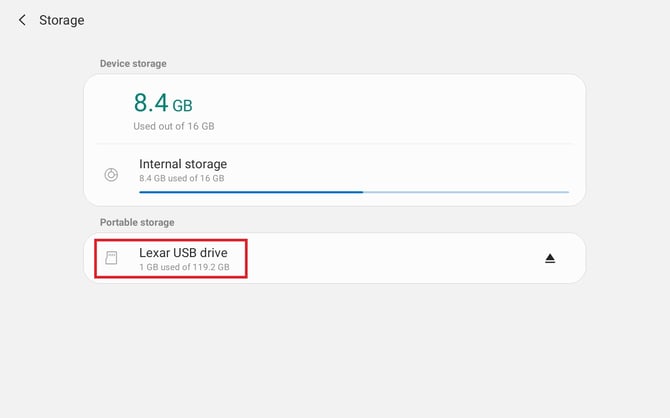
10. Click on "Format"
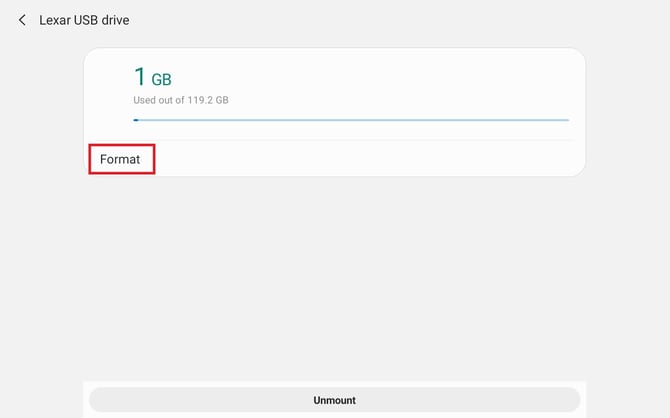
11. Proceed through the Android Wizard by clicking on "Format USB drive" and "Done" at the bottom right
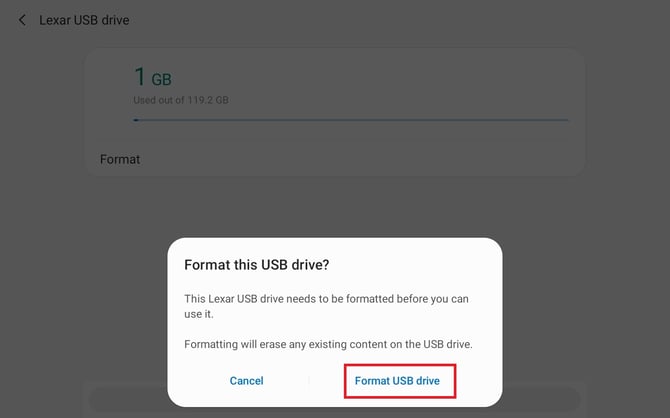
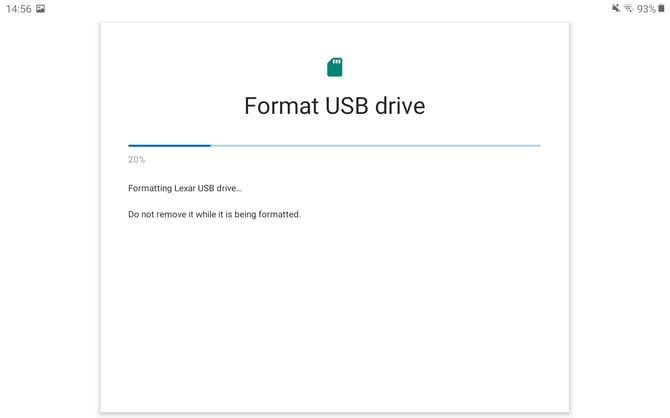
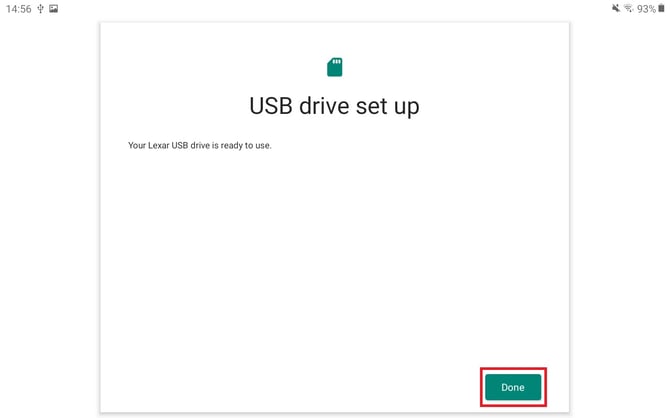
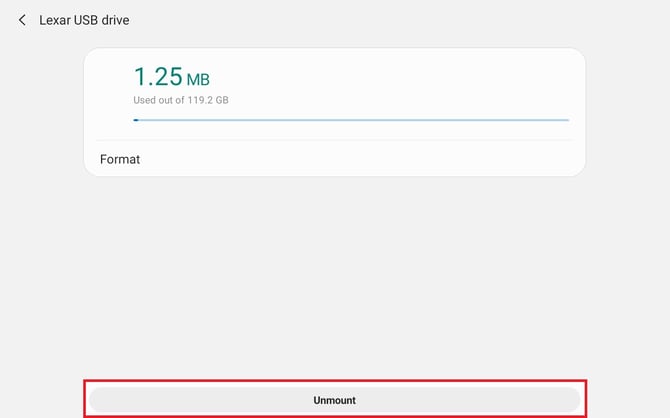
12. Your SD card is formatted with Ex-FAT. Unmount the SD card and it is ready to be used in your WingtraOne.
Format SD card with a computer
- Select the correct file system
Camera File System RX1 exFAT QX1 / WingtraOne SD exFAT RedEdge M / MX FAT32
Altum exFAT or FAT32
INSPECT exFAT
SURVEY61 exFAT
WingtraRAY SD exFAT
- Eject the SD card before pulling it out
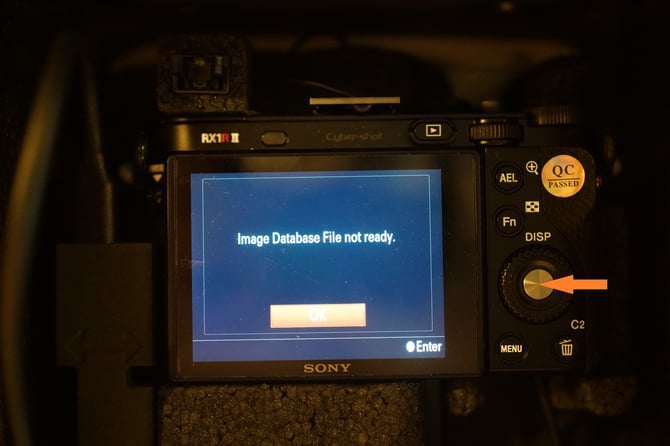
- For the RX1: Check the camera screen. If there is a message, press OK to confirm. In case you missed the message, WingtraOne needs to be repowered to establish the camera connection.
Format LIDAR USB
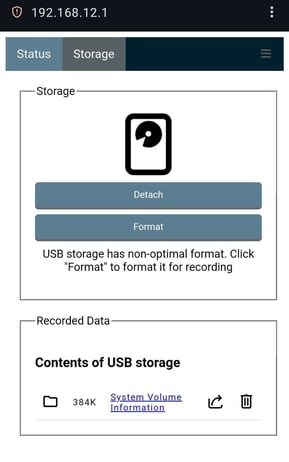
It is suggested to format the USB drive through the payload by accessing the web user interface. This method formats the drive to Fat32. Plug the power cable of the payload into the USB-C connector on the WingtraOne Gen II. Then power on the WingtraOne Gen II.
Power on the LIDAR payload by tapping the power button. Open Wi-Fi settings on your host device (tablet, smartphone, or PC) and look for the wireless network labeled:
WINGTRA-XXXXXX
This is the unit’s WiFi SSID and it is located on the device next to the unit’s serial number (for example, a WiFi SSID might look like: WINGTRA-A84F38). For the password of the network use:
WingtraLidar
Next, open up the web browser of your choice and type in the IP address of the LIDAR payload:
192.168.12.1
The web-based LIDAR payload GUI will appear once visiting the address. On the top navigation bar select the Storage tab. Under this section, there is a command to Format the disk.
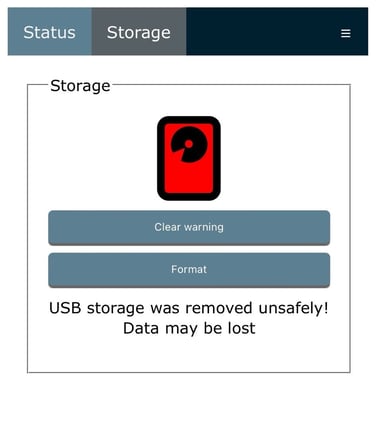
If the drive is formatted using windows default program it will format the drive as exfat. The drive will get recognized by the payload, but it will detect it the non-optimal format so Format should be done through the app again for new drives.