Skip to content
English
  • There are no suggestions because the search field is empty.

RedEdge-P GENII to RAY Upgrade Instructions

This article explains the process on how to upgrade the MicaSense RedEdge-P from the WingtraOne GENII to the WingtraRAY 

Important:
After upgrading to a WingtraRAY payload mount, reverting the payload to a WingtraOne GEN II mount is not supported and will void the warranty.
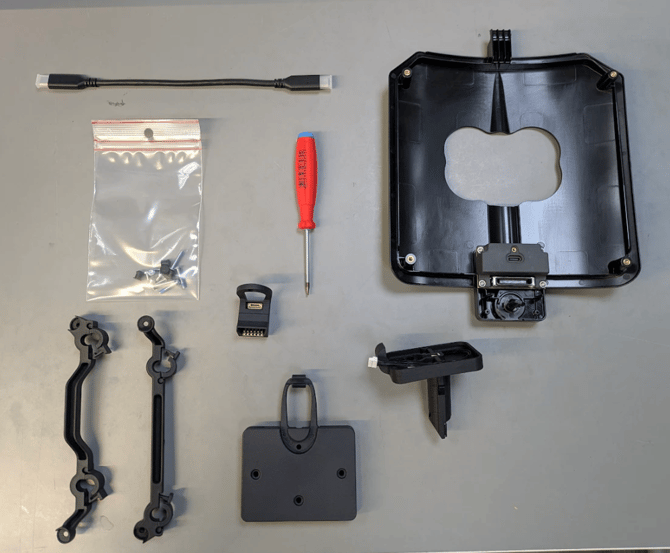
 

Tools needed: T10 screw driver (not Torx Plus), T6 screw driver (provided in the upgrade kit)


#

Illustration

Instructions

Disassemble GENII Payload

1


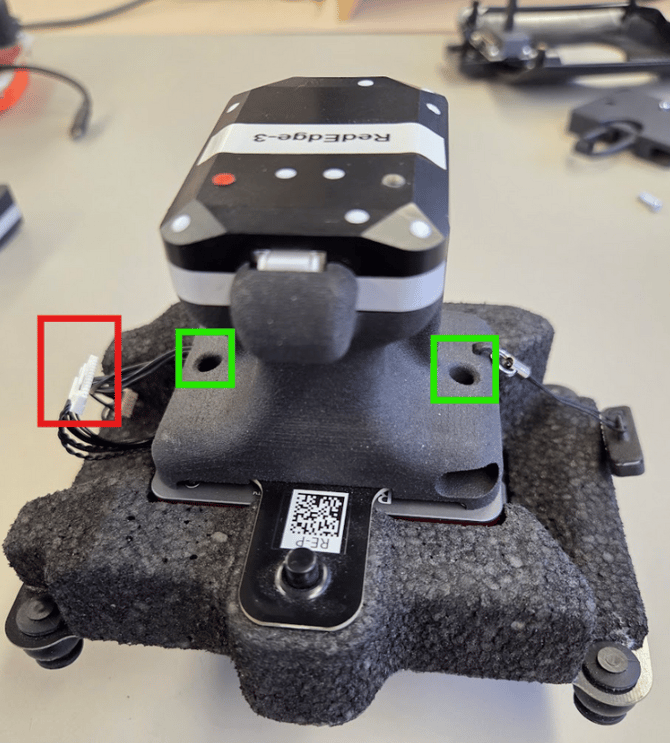
  • Unplug the USB-C cable and the 12-wire harness (red) from the DLS holder
  • Remove the two screws (green) that hold the DLS holder on the camera. Remove the DLS holder
  • Remove the lower pins from the rubber balls
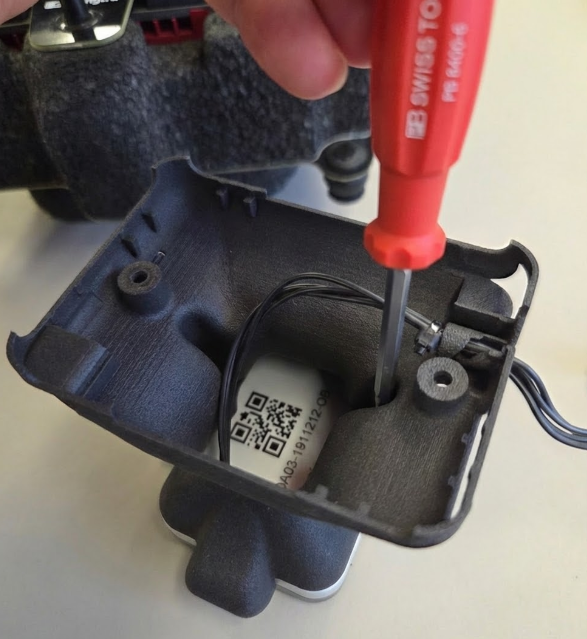
  • Detach the DLS holder from the camera

2

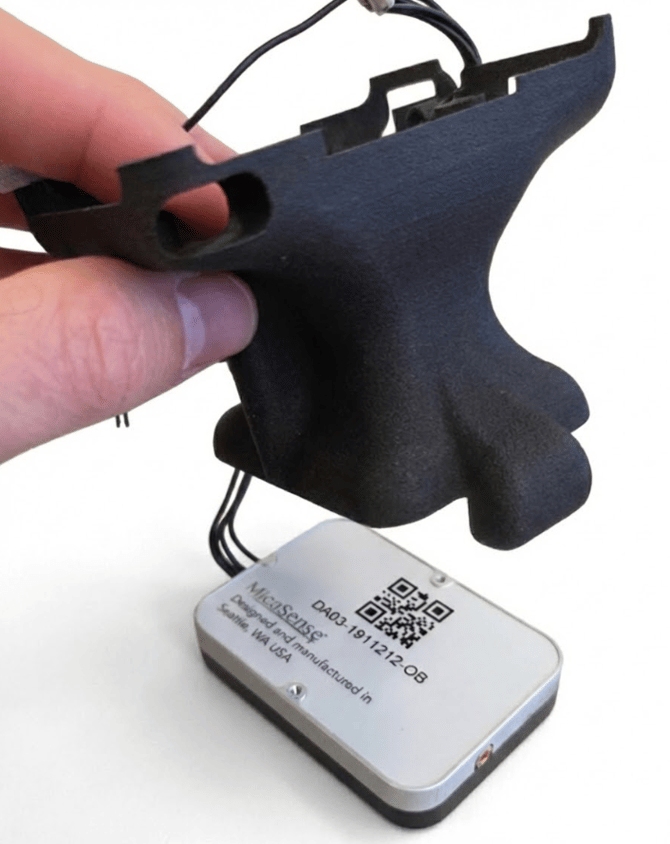
  • Unscrew both T6 screws on the bottom of the DLS
  • Unplug the cable connected to the DLS. You should only have the DLS housing as depicted

Upgrade to WingtraRAY Payload

3

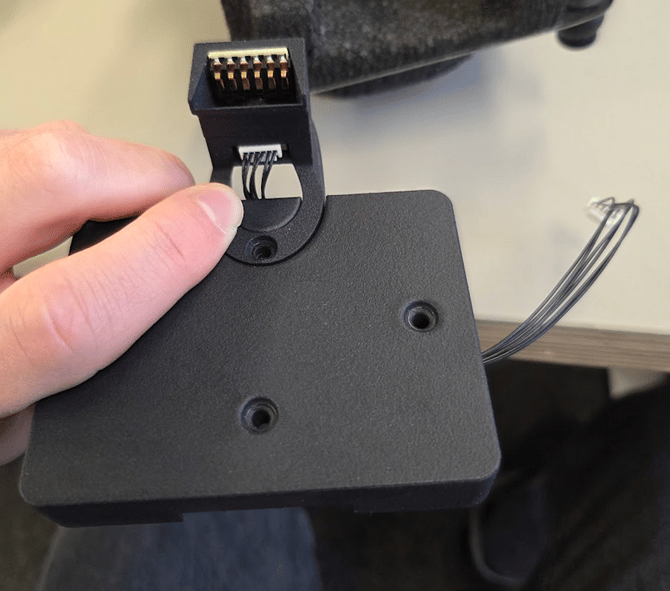
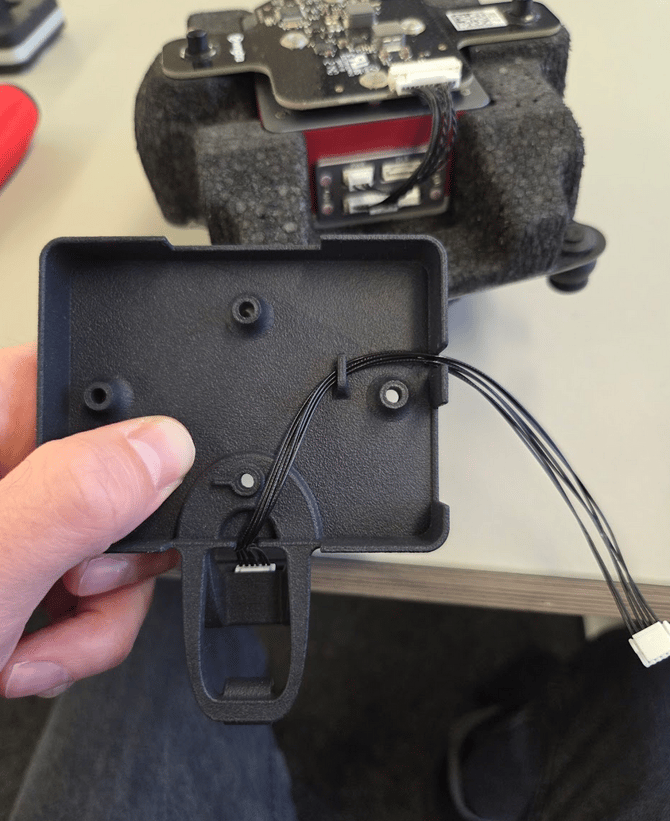
  • Take the top cover, mate it with the add-on bracket (first image), guide the cables from the connector part through the top cover as displayed in the second image
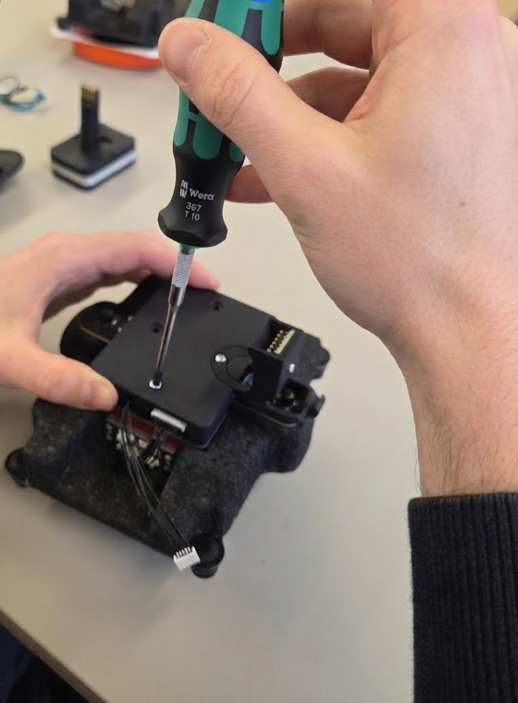
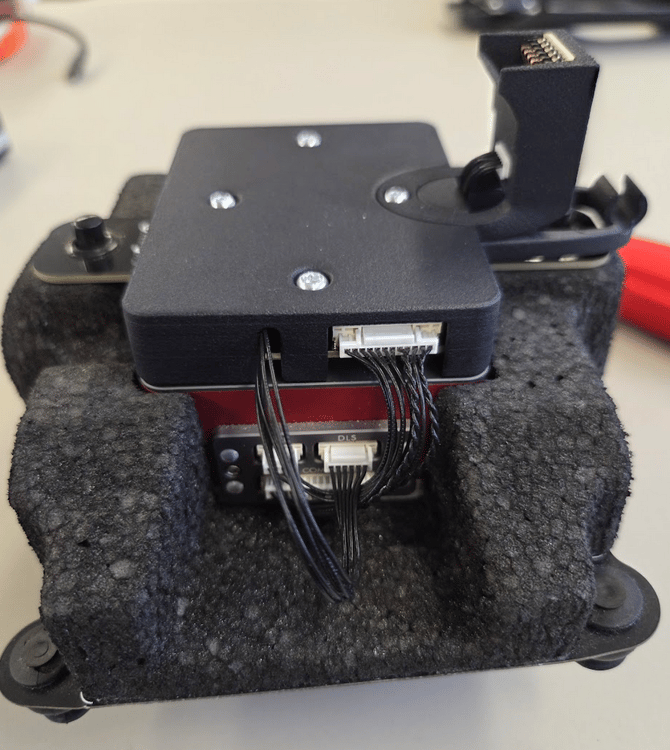
  • Place the top cover and connector on the camera and secure them with four screws (third image)
  • Connect the 6-wire harness from the connector to the camera marked with “DLS”

4


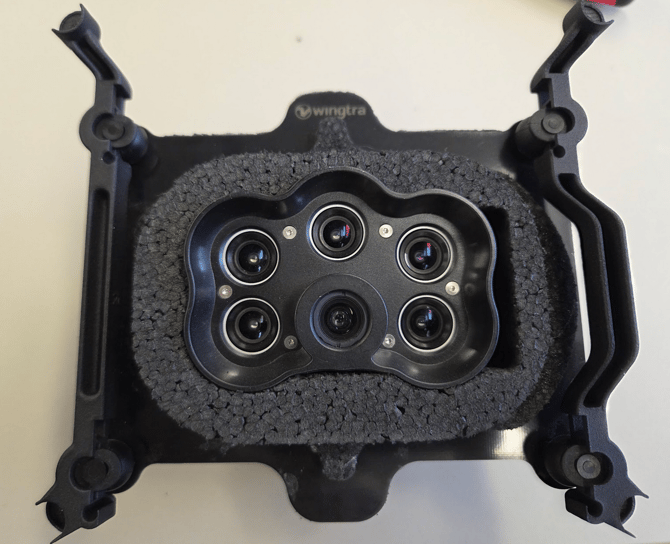
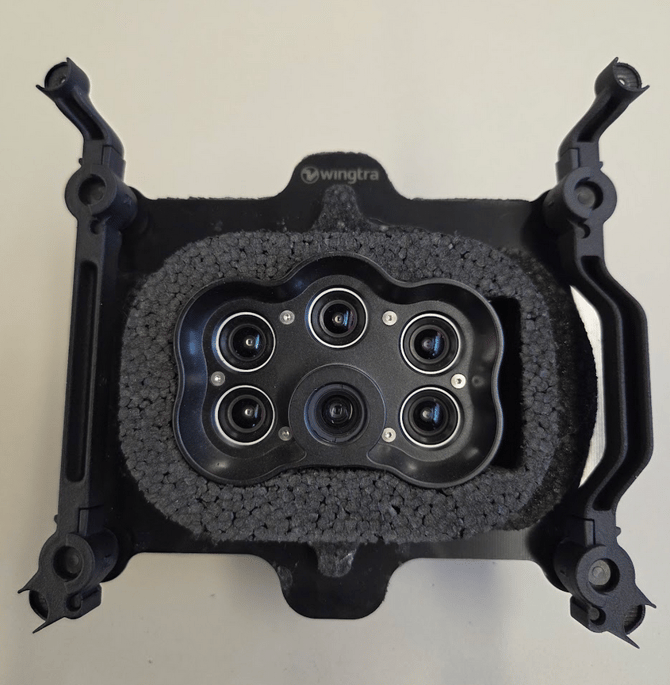
  • The orientation of the brackets (left and right) is as depicted in the first image
  • Flip the payload around, insert the four pins in the rubber balls
  • Attach the brackets as shown in the second image
  • Attach the bracket clips on all 4 corners. The result is shown in the third image

5

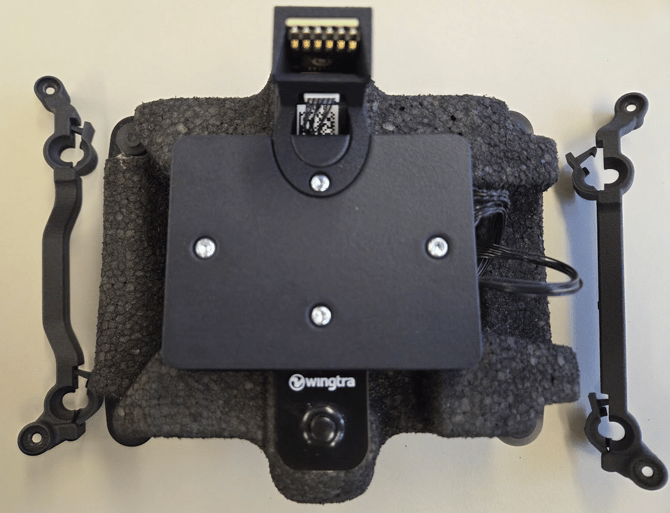
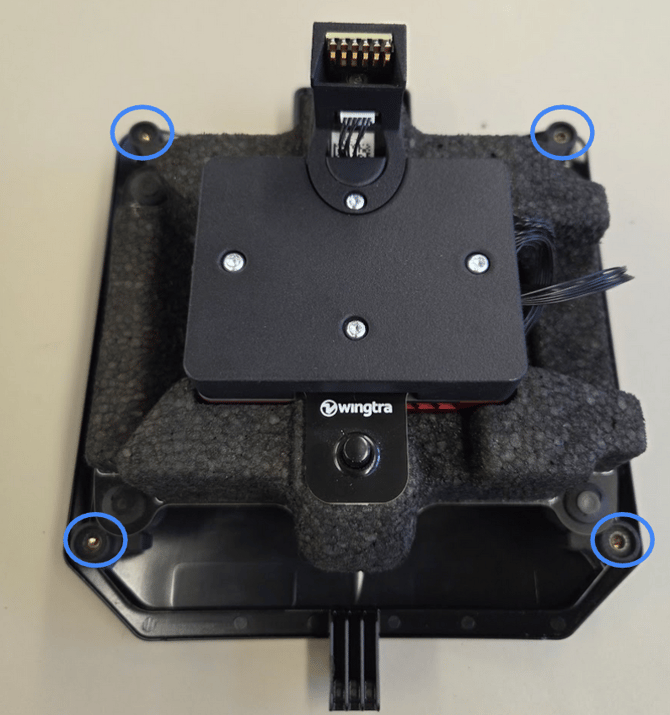
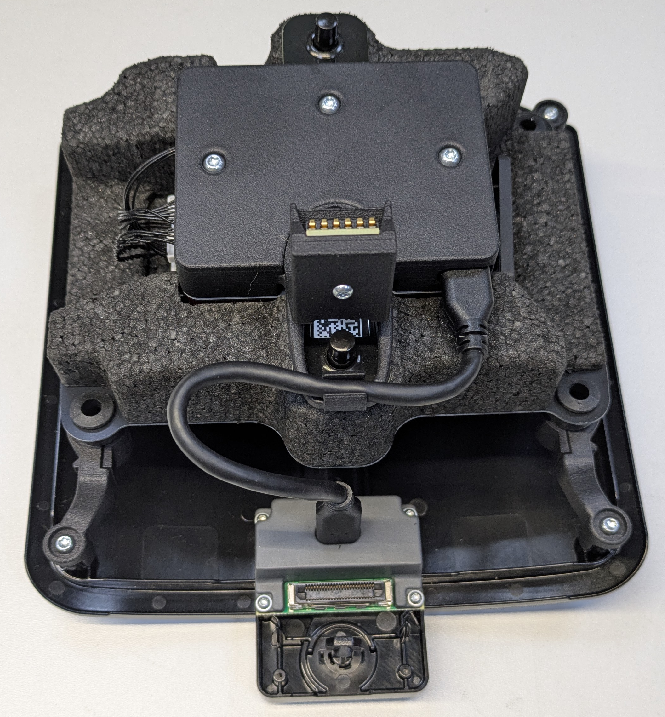
  • Attach the lower cover and tighten the 4 screws. The orientation should be as depicted in the image on the left


  • Clip the USB-C cable in the cable clip and connect the USB-C cable to the lower cover


6

  • Take the DLS and attach it with the T8 screws to the provided DLS mount

For the correct way to install the payload, please refer to the article RedEdge-P on RAY - Installation Guide.