
Make sure WingtraOne is not powered.
Follow the steps 1 and 2 of the article Access flight logs from the OBC SD card to learn how to retrieve the OBC SD card.
The SD card from the on-board computer is flashed using a prebuilt image file through the program Etcher on your laptop.
- Install Etcher (Linux, Windows and MacOS are supported)
- Run Etcher
- Download the release image file onto your computer. You need to choose the WingtraOne version you have:
- For GEN I drones download the file: p1.12.0-pc.13_version_1.img
- For GEN II drones download the file: rpi_gen2_image_hash_fe7ccb9326_v33.img
- In the Etcher GUI, select Flash from file and select the downloaded .img file.
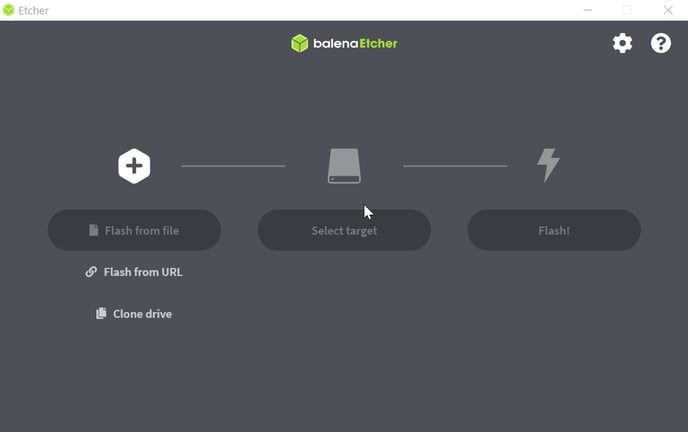
- Insert the OBC SD card into the computer and select it as target.
- Etcher autodetects and selects the right drive.
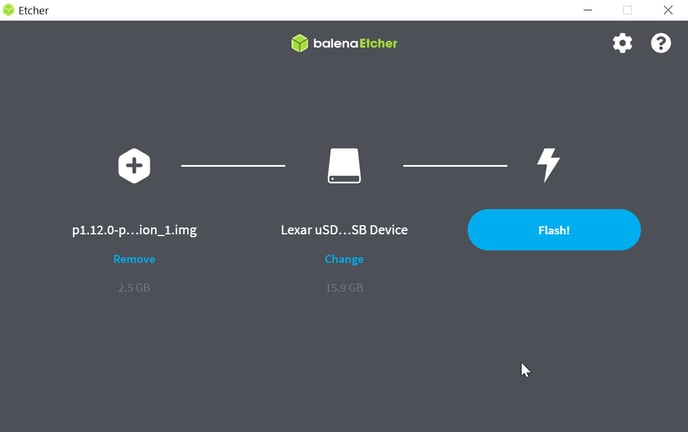
- Press "Flash" to start flashing the SD-Card.
The process of flashing and verification should take up to 5 minutes. The process is then finished and the SD card is ready to use.
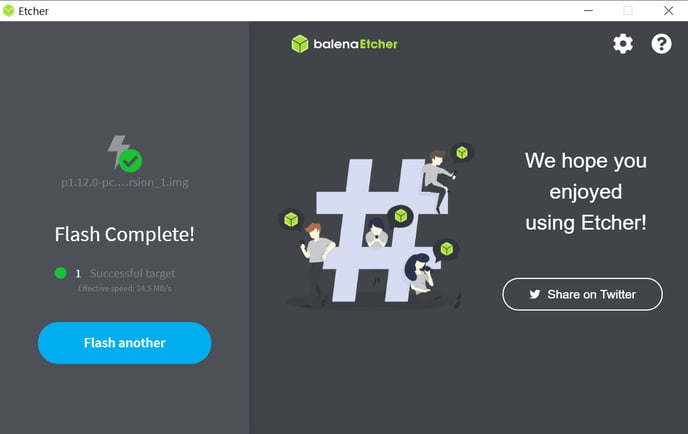
Put it back into the WingtraOne as explained in steps 4 and 5.
Power WingtraOne by connecting the WingtraOne flight batteries. Connect the telemetry antenna and wait until you get a success message that the firmware was updated successfully.
You will get a pop up informing you about the software and firmware version missmatch.
Go to the update page and update the firmware to the latest release by copying the .tar to the camera SD card.