This instruction should be used only as a last resort if you are blocked, need urgent resolution and there are clear signs it is caused by a software update.
The downgrading process consists of two main steps
- Downgrade WingtraPilot
- Downgrade WingtraOne
Step 1: Locate the installation files
All installation files of previous releases that you need to do the downgrade (.apk and .tar files) are stored in the internal storage of the tablet within WingtraPilot/Release folder.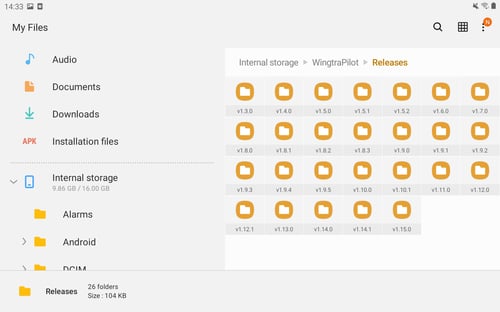
As an alternative, if for some reason you would fail to do a downgrade using files stored on a tablet, you can download the files directly from our servers, by clicking here. In that case, copy the .apk file to the root folder of the tablet internal storage.
Avoid using anything older than 1 release back.
Step 2: Downgrade WingtraPilot
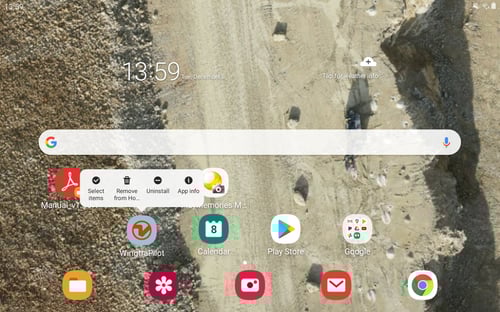
- Manually delete WingtraPilot by pressing and holding the icon on the tablet display and pressing Uninstall.
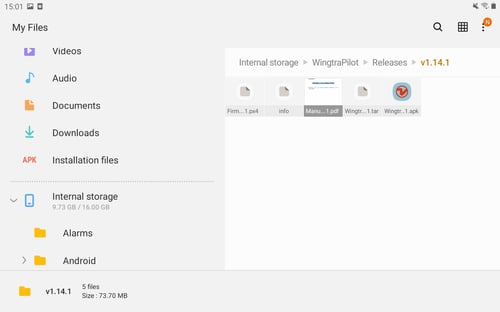
- Locate the .apk file, and run the fresh installation of WingtraPilot by double-clicking on the icon and following the steps.
Step 3: Downgrade WingtraOne firmware
- Ensure that your WingtraOne is powered off.
- Remove the SD card of the camera of WingtraOne and insert it with the provided USB adapter into the tablet. In case you have the new SD card adapter see the instructions on how to use it correctly.
- Copy the .tar file from Internal storage/WingtraPilot/Release/v1.XX.X to camera SD card root folder. Do it by selecting the file first and by dragging and dropping it to USB storage 1.
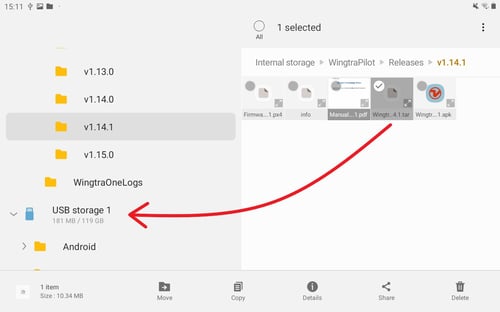
- After the copying is finished, remove the SD card from the tablet and reinsert it into the camera of WingtraOne or the plane depending on the camera configuration.
- Power WingtraOne on, connect the telemetry to the tablet and start WingtraPilot.
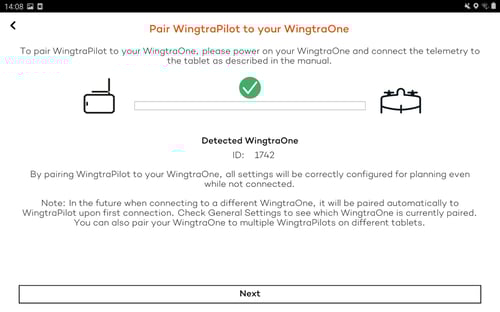
- Pair WingtraPilot and WingtraOne. Once it is done click next.
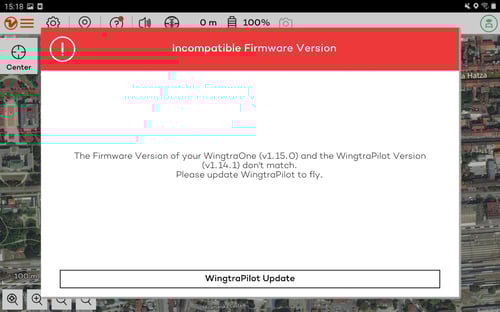
- Once connected, the Warning Incompatible Firmware Version pop up message will appear. Click Update WingtraPilot.
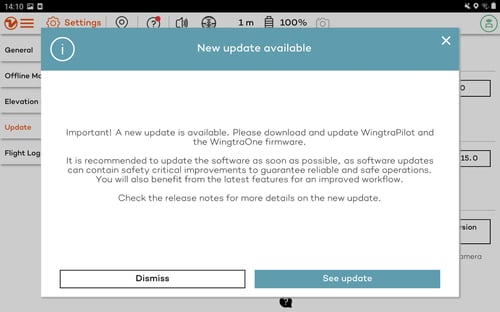
- A new update available dialog box should appear asking for the update of WingtraPilot and WingtraOne firmware. Click Dismiss.
- The Firmware Update dialog will appear, saying that a new firmware has been detected on the camera SD card. Click on Update now to start the update process.
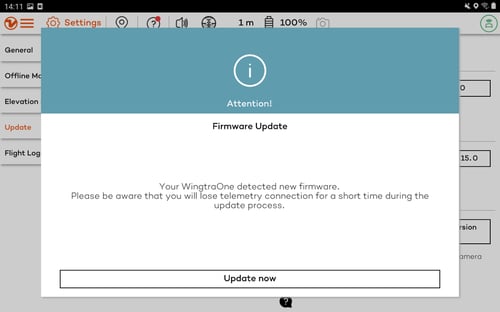
- WingtraPilot will lose the telemetry connection for about one minute during the update process. Important: Do not shut down the WingtraOne during the update process.
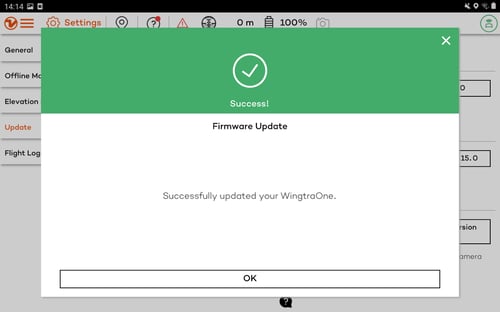
- WingtraPilot will let you know when the update was successful. By clicking on OK, you finalize the update process.
Step 4: Verification
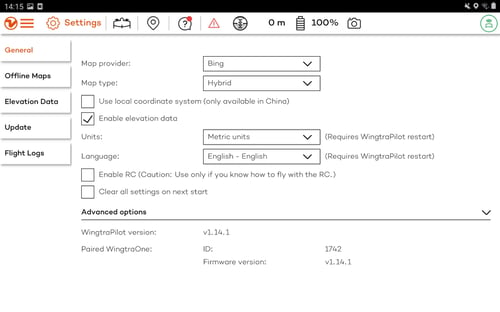
After you are done, double-check the WingtraPilot and the firmware version your drone is running on, by clicking on the General tab under Settings. Make sure that they are the same.