Skip to content
English
  • There are no suggestions because the search field is empty.

WingtraOne GEN II: Access flight logs from the OBC SD card

This article shows you how to access the OBC SD cards and retrieve log files directly from them.

Time required 20-30 min
Difficulty Moderate
Equipment WingtraOne,  provided Hex-wrench or Torx tool, adapter for micro SD, LinuxReader


This workflow should only be followed if it is not possible to download the flight logs from WingtraPilot

OBC stands for the on-board computer that is inside the WingtraOne and controls the communication between the different sub-systems.

Step 1.  Access the electronics compartment

Select your drone version

a. Access the electronics compartment on GEN II units
b. Access the electronics compartment on GEN I units (868Mhz/900Mhz/2.4Ghz)


a. Access the electronics compartment on GEN II units
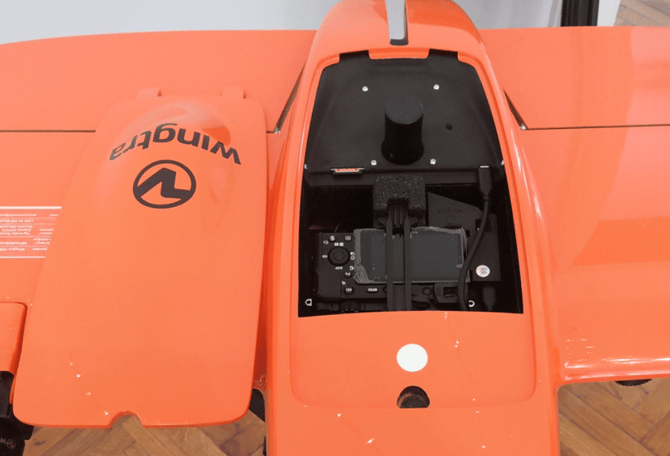
GEN II open top cover
  • Power off the WingtraOne and lay it down on a flat surface, e.g., a table, with the nose pointing to you.
  • Open the top cover.
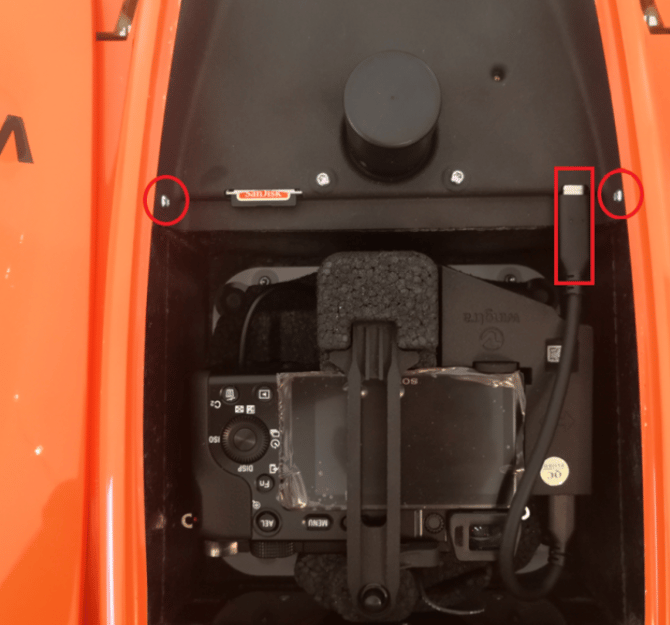
RX1_USBc
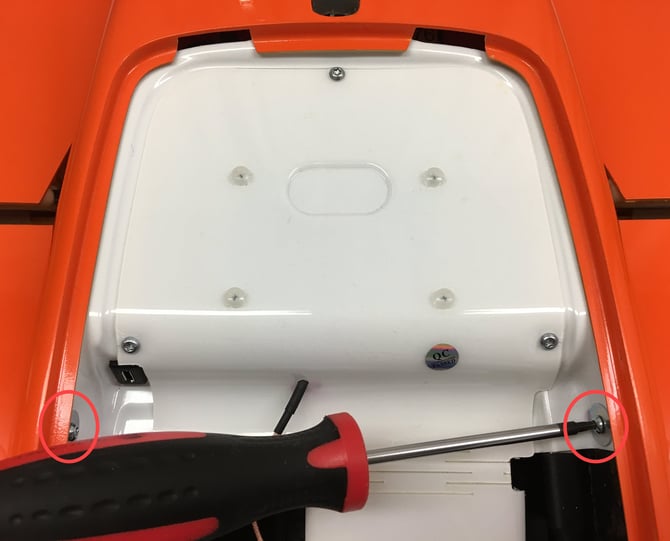
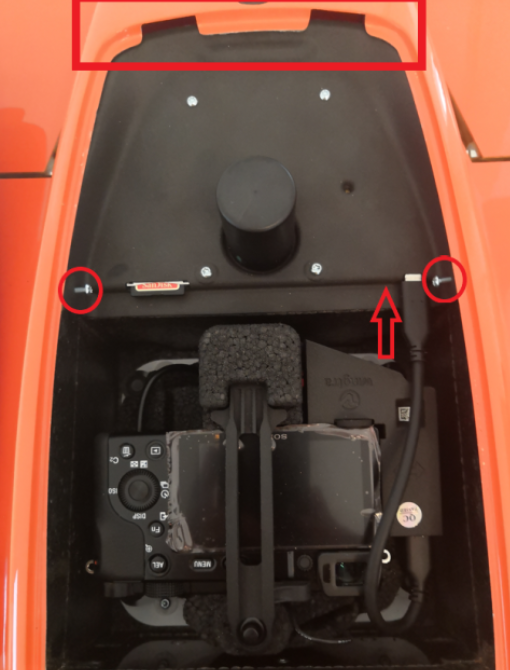
  • Unscrew the two torx M3x12 screws (see them circled with red in the image).
  • Unplug the USB-C connector.
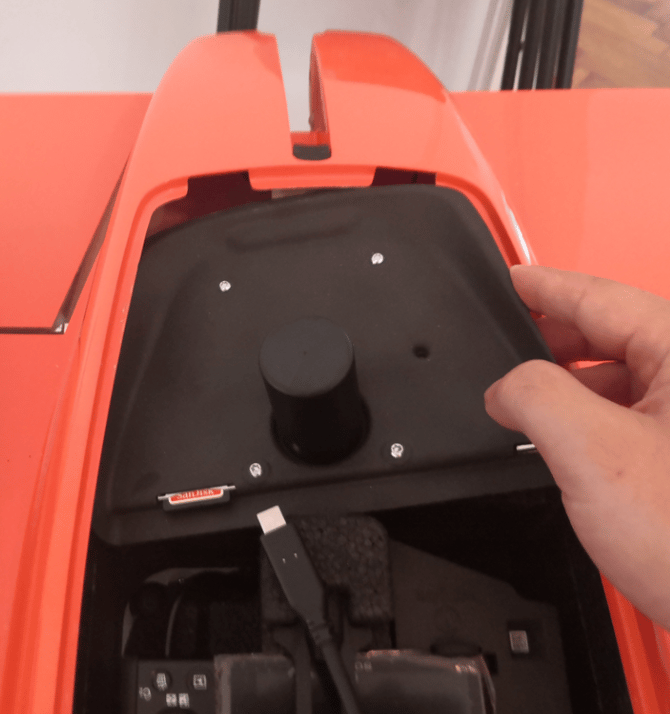
lift PPK ecover
  • Use the screwdriver or fingers to push slightly and bend the black latch so that you can lift it out of the groove.
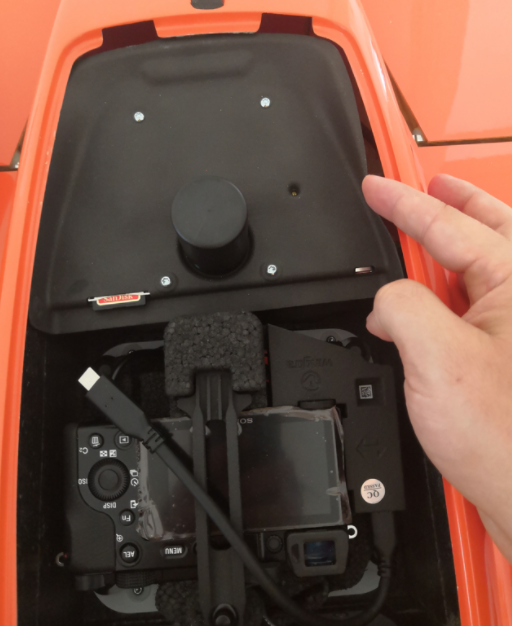
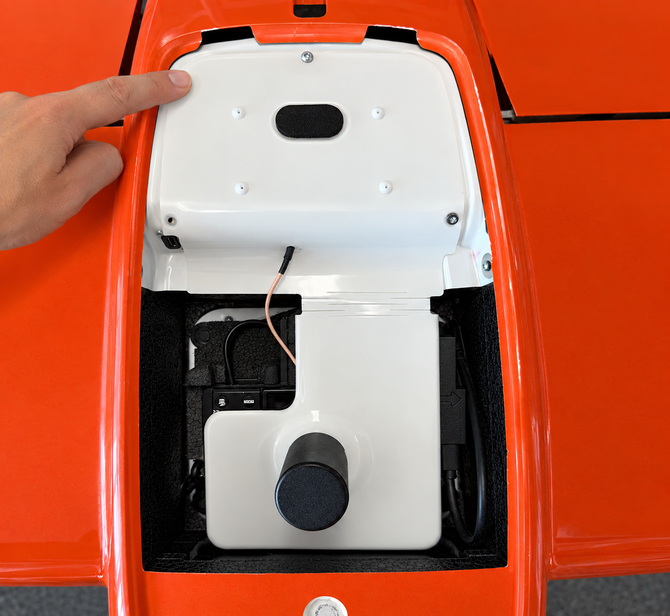
  • Lift the e-plate with the PPK module and antenna attached by slightly bending the right side of the black cover.
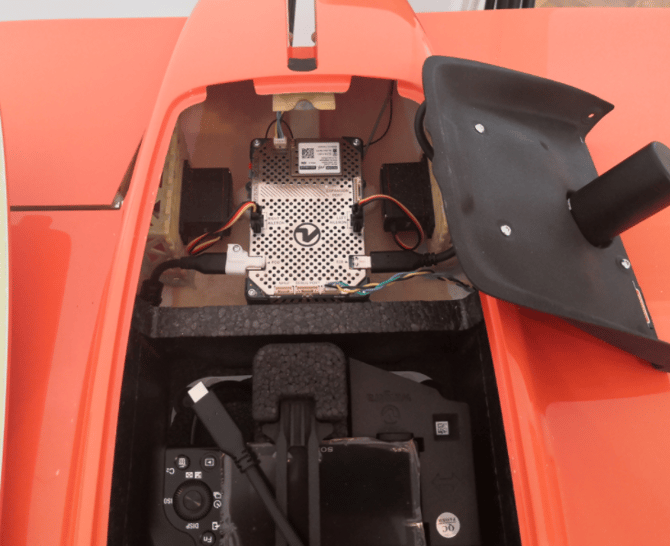
electronics
  • Lift the PPK module and put it on the right.
⚠️ Be very careful while bending and lifting up the black cover since it's connected via multiple cables to the electronics below.


b. Access the electronics compartment on GEN I units (868Mhz/900Mhz/2.4Ghz)
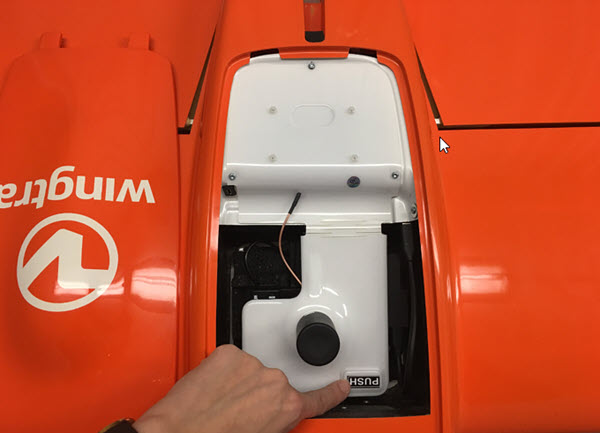
rebind2
  • Power off the WingtraOne and lay it down on a flat surface, e.g. table, with the nose pointing to you.
  • Open the top cover.
  • If applicable: Open the PPK cover pressing on the PUSH button.

unscrew_ecover

  • Unscrew the two torx M3x12 screws (see them circled with red in the image) holding the white e-plate cover (with the PPK cover attached).
pull_down_ecover
  • Lift the PPK cover antenna lid and slide the white cover towards the battery compartment.
⚠️ Be very careful lifting up the white cover since it's connected with multiple cables to the electronics below.


pull_right_ecover

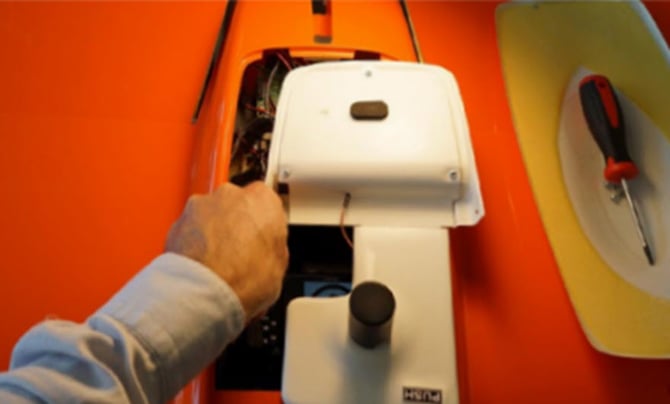
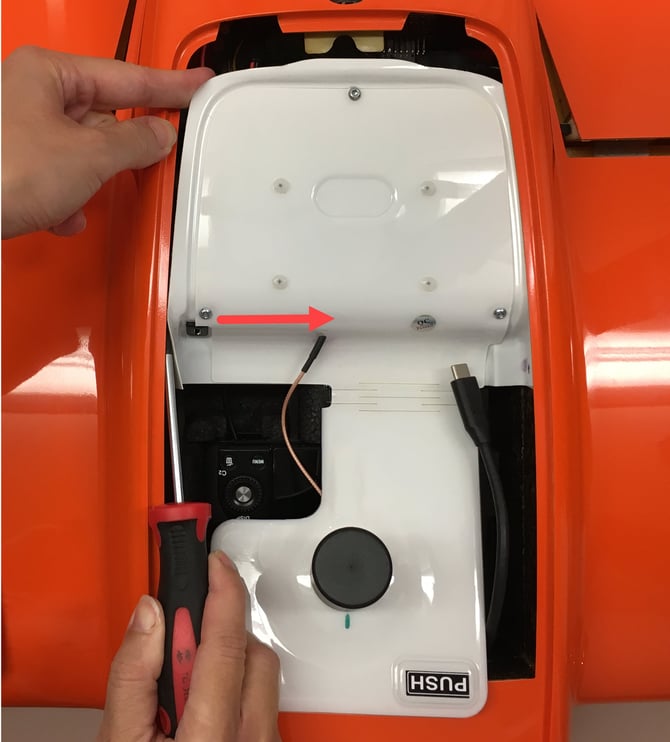
  • Use the screwdriver to push slightly and bend the white latch so that you can lift it out of the groove.

step7b

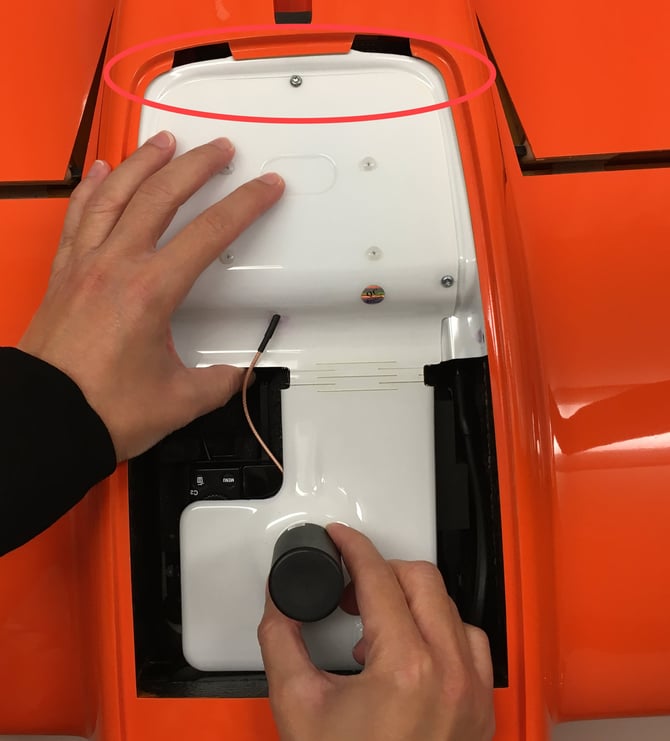
  • Only lift the white cover by 2 cm (see the photo) and shift it to the side 5 cm to avoid pulling the electronic cables.

Step 2: Take the SD card out of the OBC

On Gen I units the OBC SD card used is a Sandisk, Class 10, micro SD card of 16 GB capacity, while on GEN II is the same one but with 32GB capacity.

Select your drone version

a. Get the SD card from the OBC WingtraOne GEN II drones

b. Get the SD card from the OBC on WingtraOne GEN I 2.4 GHz telemetry drones

The 2.4 GHz drones have 2 battery data cables connectors on the drone.

c. Get the SD card from the OBC on WingtraOne GEN I 868 or 900 MHz telemetry drones

The 868/900 MHz drones have only one data cable connector on the drone.


a. Get the SD card from the OBC WingtraOne GEN II drones
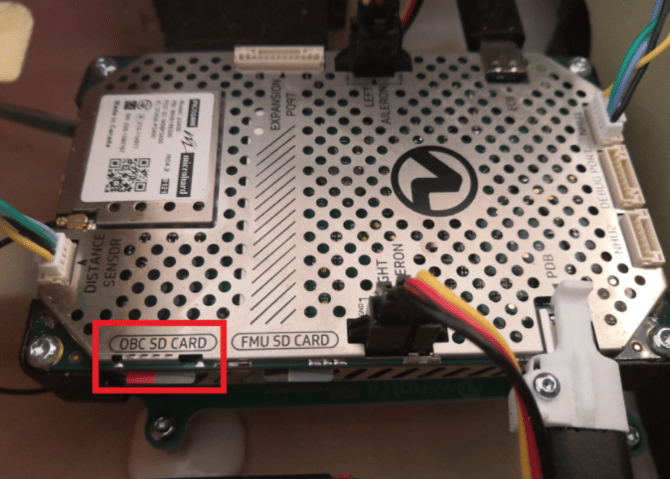
OBC SD card
  • Looking from the top (nose) of WingtraOne, locate the SD card on the left side of the electronics board inside the electronics compartment (marked with a red square)
  • Press the SD card into the metal housing with your finger and it will pop out
⚠️ Make sure that you do not drop the card inside the electronic bay

b. Get the SD card from the OBC on WingtraOne GEN I 2.4 GHz telemetry drones
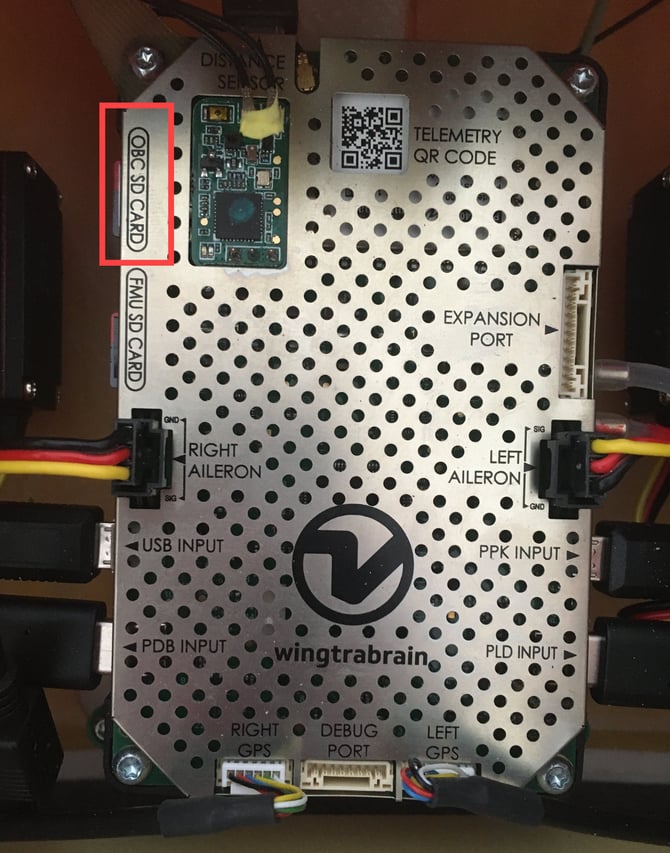
v3_board_obc
  • Looking from the top (nose) of WingtraOne, locate the SD card on the left side of the electronics board inside the electronics compartment (marked with a red square).
  • Press the SD card into the metal housing with your finger and it will pop out. 
⚠️ Make sure that you do not drop the cards inside the electronic bay. 


c. Get the SD card from the OBC on WingtraOne GEN I 868 or 900 MHz telemetry drones
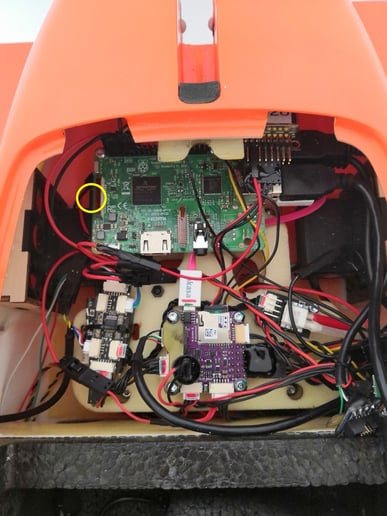
Image1-8
  • Looking from the top (nose) of WingtraOne, locate the SD card on the left side of the green board inside the electronics compartment (marked with yellow circle).
  • Check the short video to see how to take out the SD card.
💡 Use pliers or your fingers to gently pull the SD card out. See also the following video to better understand how to get out the SD card.


Video

Step 3. Extracting logs from the OBC SD card

Once the OBC SD card is taken out, please follow the steps below in order to extract the logs. The process is the same no matter which hardware version of WingtraOne you are using.


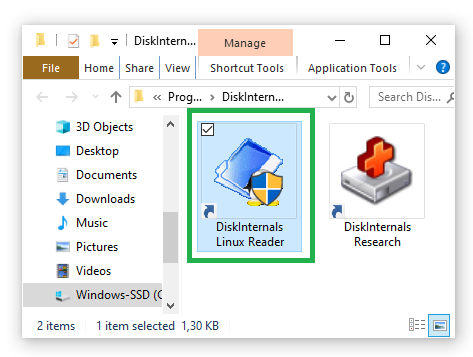
  • Download the LinuxReader (free version).
  • After installation, insert the SD card into your Windows computer using the adapter.
    ⚠️DO NOT REPAIR THE DRIVE IF PROMPTED.  This message appears because Windows is recognizing a different operating system format.  It is very important to not change or delete any of the files on the OBC card!  Only make a copy of the folders.
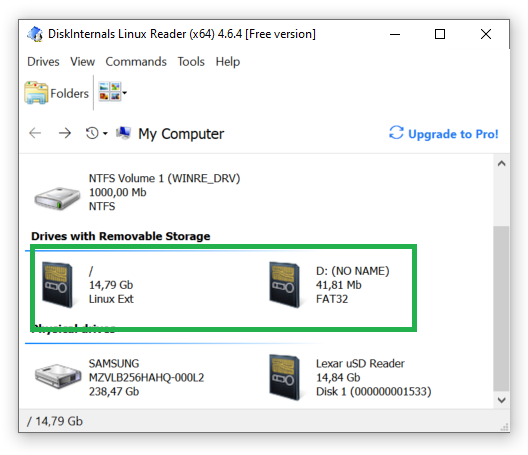
  • Open up the DiskInternals Linux Reader program.


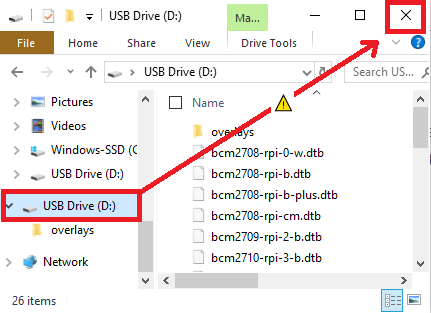
⚠️ If the file explorer opens in Windows close it.  We are only interested in submitting logs from the DiskInternals program which has 2 partitions.


  • The disk should be displayed twice when you open the DiskInternals program.  

💡 If the disk does not show up, try restarting the program with the card still connected and then try reinserting the SD card after properly ejecting.


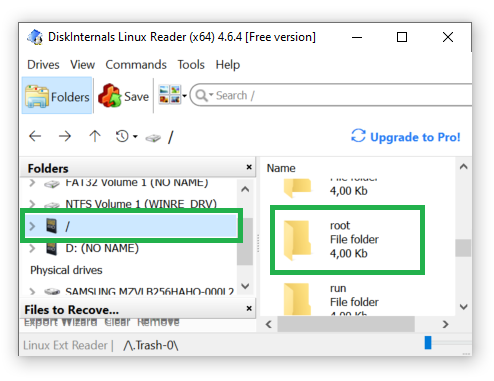
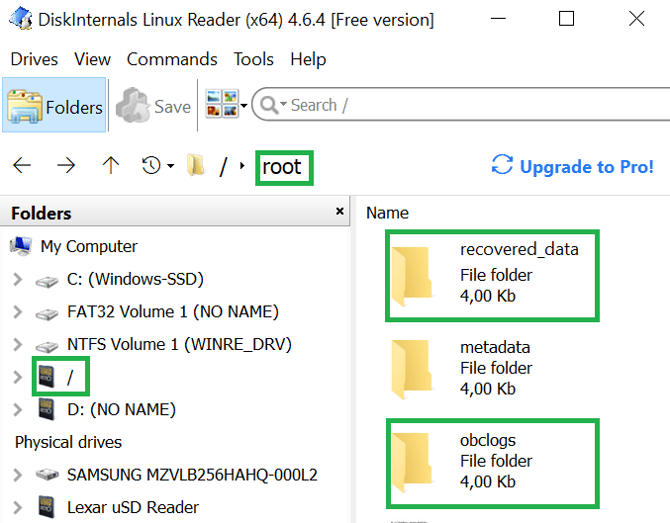
  • GEN I drones: Go to the SD card folder “/” and into the root folder
  • GEN II drones: Go to SD card folder “/”, home folder and then pi

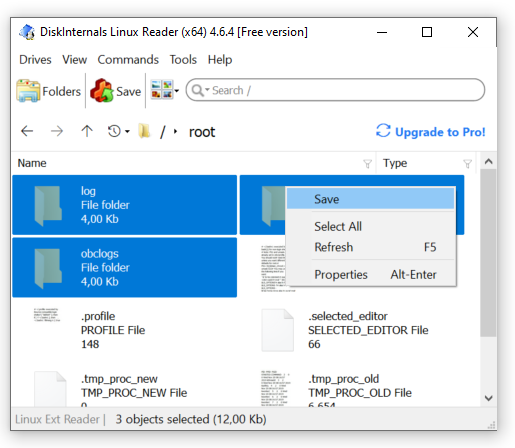
  • Select the obclogs, logs,  and recovered_data if present. Use Ctrl to select multiple files.
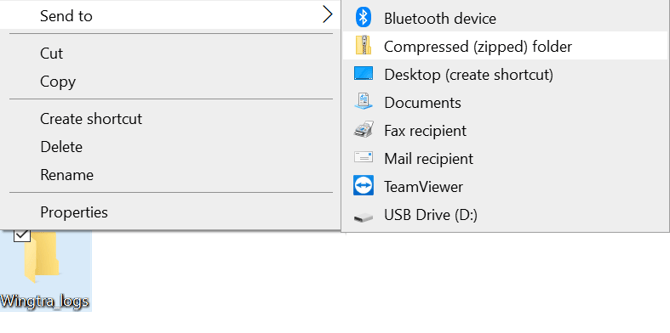
  • Right-click to view the drop-down selection where we need to click save.
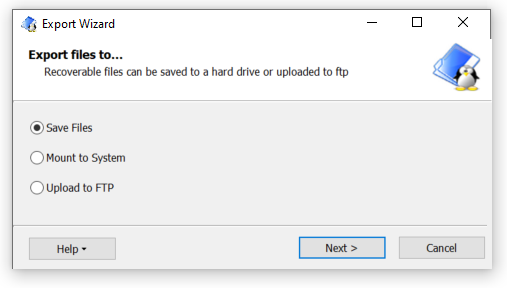
  • An export wizard will pop up to specify where we want to export the files to on our Windows machine.
💡 Try to keep these folders organized from other SD card log files and make sure they upload 100%.


Step 4. Reinsert OBC SD card

When the content of the OBC SD card is transferred to the computer, you need to put the card back

Select your drone version

a. Reinsert the OBC SD card to WingtraOne GEN II drone

b. Reinsert the OBC SD card to a WIngtraOne GEN I 2.4 GHz telemetry drone

The 2.4 GHz drones have 2 battery data cables connectors on the drone.

c. Reinsert the OBC SD card to a WingtraOne GEN I 868 or 900 MHz telemetry drone

The 868/900 MHz drones have only one data cable connector on the drone.

a. Reinsert the OBC SD card to WingtraOne GEN II drone
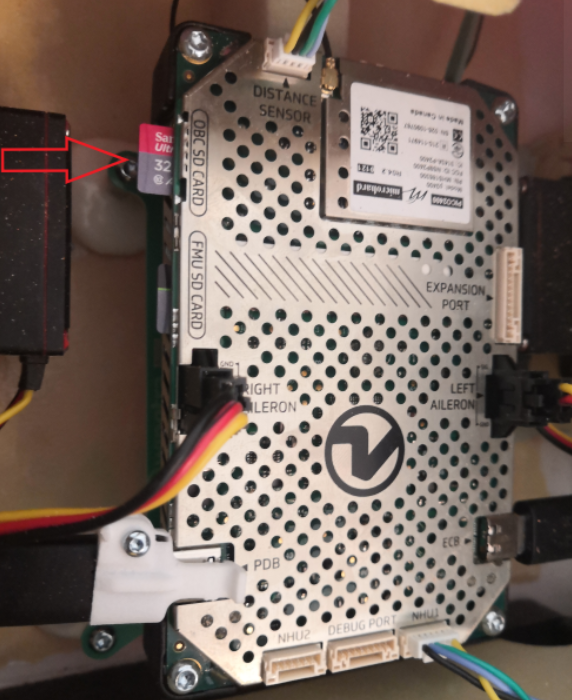
 

reinsert OBC
  •  Insert and press the OBC SD card with your finger until it clicks.

b. Reinsert the OBC SD card to a WingtraOne 2.4 GHz telemetry drone
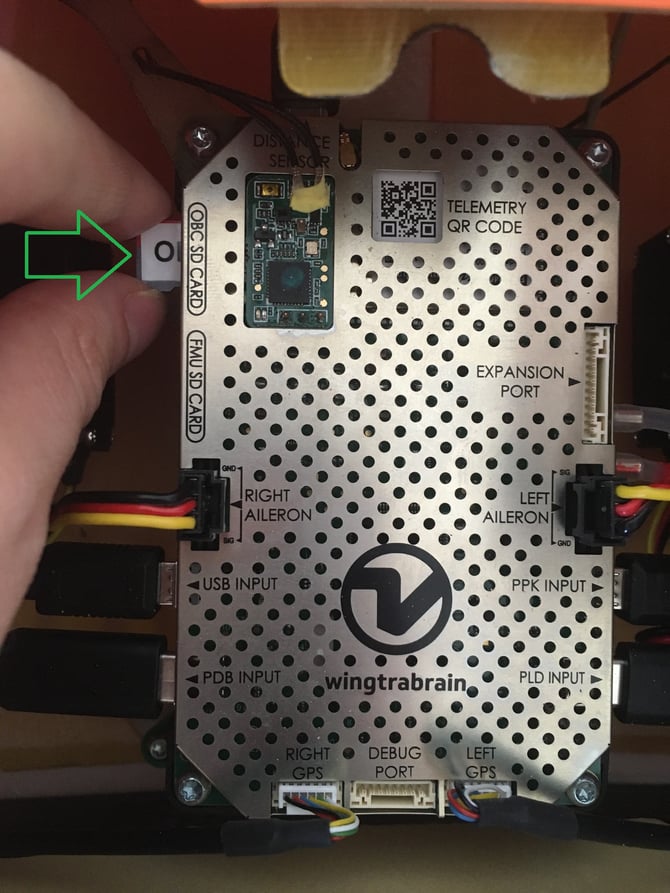
 

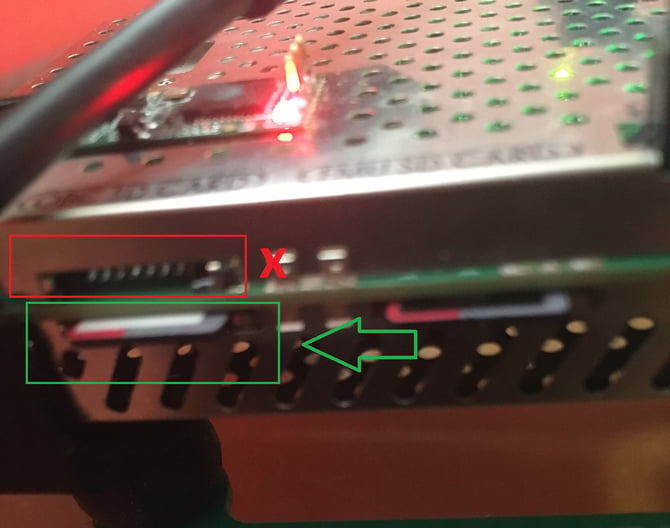
  •  Insert and press the OBC SD card in the bottom slot with your finger until it clicks.

⚠️ If the serial number of your WingtraOne is below 1934, make sure that you insert the OBC SD card in the bottom SD card slot. 

If the serial number is above 1934, the top slot has a dummy SD card inserted, but the bottom slot is always used 


c. Reinsert the OBC SD card to a WingtraOne GEN I 868 or 900 MHz telemetry drone

Exercise patience: the SD card socket is underneath the OBC board and not easy to reach. For instructions on how to replace it, check the video below.

Step 5. Close the e-cover

a. WingtraOne GEN II drone
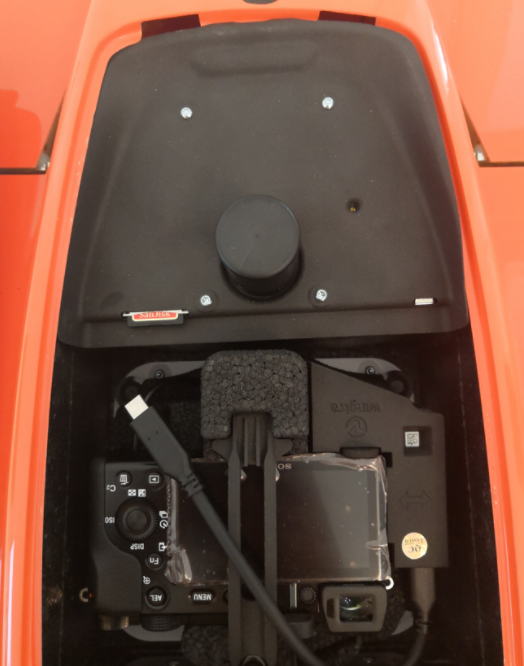
 

close ecover
  • Reinsert carefully the black cover first on the left side into the groove.
insert ecover PPK
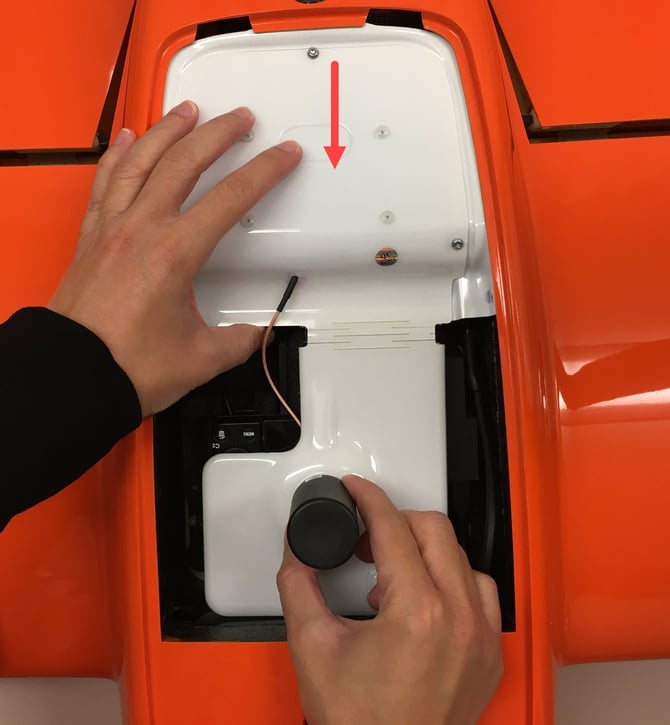
  • Carefully push the right edge of the black cover as indicated in the picture to insert the other side of the cover into the groove.
screw ecover PPK
  • Slide the black cover to the back; pay attention that it inserts correctly into the groove at the rear.
  • Screw the two screws on the left and right; tighten them carefully, but do not overtighten.
  • Firmly plug the USB-C cable.
  • Close the top cover.


b. WingtraOne GEN I drone


  • Reinsert carefully the white cover first on the right side into the groove.
pull_right_ecover
  • Carefully push the edge of the white cover as indicated in the picture to insert the other side of the cover into the groove.
close_electronics
  • Slide the white cover to the back. Pay attention that it inserts correctly into the groove at the rear part.

unscrew_ecover

  • Screw the two screws on the left and right.
💡 You may have to adjust the position of the white cover so that the holes match on both sides. 
  • Tighten the screws carefully.
rebind2
  • Close the PPK cover by pressing the PUSH button.
  • Close the top cover.