
|
Time required |
10 min |
|
Difficulty |
Easy |
|
Equipment |
WingtraOne, New mount, 2 mm Allen key, TX10 75 mm Torx screwdriver |
Step-by-step instructions
Step 1: Remove the RGB61 camera attached to the mount from WingtraOne GEN II
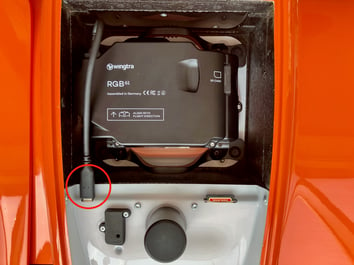 |
|
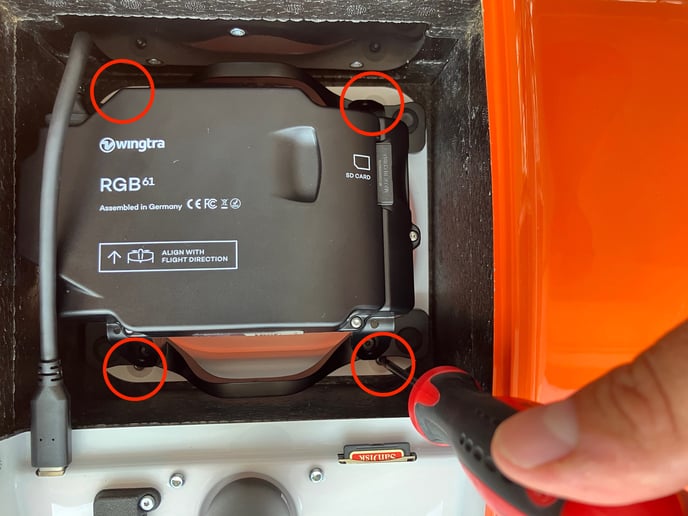 |
|
Step 2: Remove the RGB61 camera from the mount
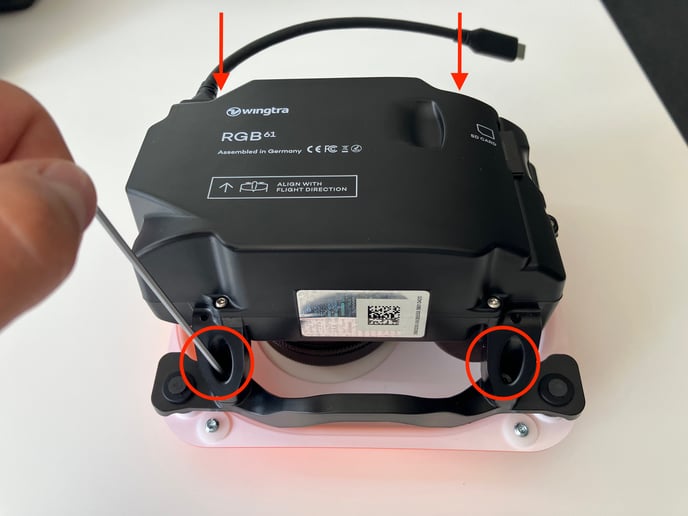 |
|
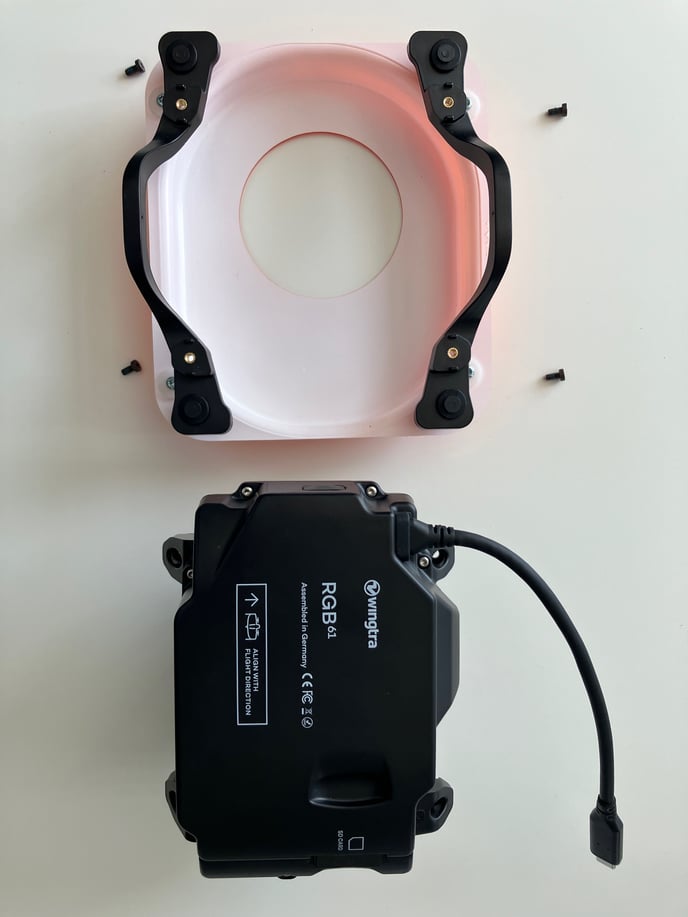 |
|
Please make sure not to lose the screws
Step 3: Place the RGB61 camera into the new mount
|
|
Step 4: Place the RGB 61 camera attached to the new mount into WIngtraOne GEN II
- Use the Torx screwdriver to tighten the four screws in the four corners of the payload area. Make sure you don't overtighten them (maximum torque 0.4 Nm - use two fingers tightness).
- Plug the USB-C universal payload connector into the drone.
- Close the top cover.
- Do a test flight. Before the flight, double-check that all the cables are connected firmly. If any issues with the camera appear, please contact Wingtra Support