
Wingtra LIDAR is a Windows application that can be installed on Windows 10 or 11 x64.
You can download the latest version of the application's installation file by clicking on DOWNLOAD Wingtra LIDAR app v.1.16.1, released on July 10th 2026.
The previous release can be downloaded here: DOWNLOAD Wingtra LIDAR app v1.10.1.
Computer performance influences the speed of the processing and the software's performance. To do the processing promptly, it is recommended a computer with the following specifications:
- Intel Core i7 or better
- 32 GB RAM
- Nvidia GeForce GTX 1050 Ti or better
- Windows 10 x64
By default, the application should select the high-performance GPU. If the application is not optimized it will take a long time to load and will have a slow performance.
To check the application is optimized, go to System -> Display -> Graphics -> Browse Program -> Add. Locate the Wingtra LIDAR App program, and ensure that High Performance is selected. If not, click on the Wingtra LIDAR app and select High Performance from the Options menu.
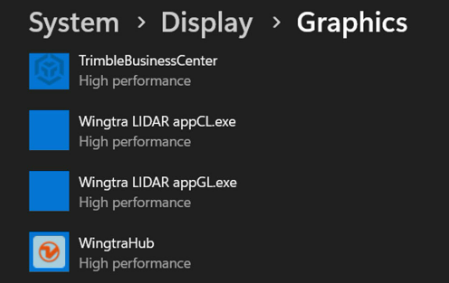
To avoid rendering issues make sure to perform a graphics driver update (e.g. through NVIDIA Control Panel)
License Manager
Once installation is completed, the software license needs to be activated. The Wingtra LIDAR application license can only be activated on one device at a time. If the license cannot be found, search for it in your email or contact the vendor from whom the purchase was made. The email is sent to the registered address of the plane's serial number.
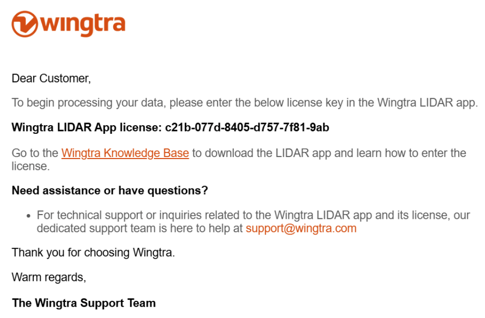
To activate the license, follow the steps below:
1. Open the Wingtra LIDAR app
2. At the top menu bar in the program select Settings -> Local License Manager.
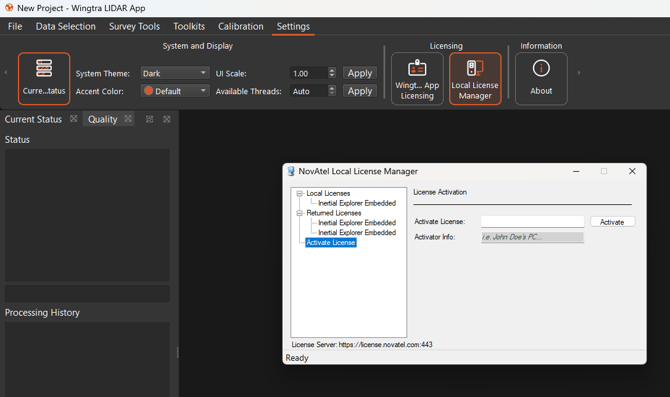
3. Select Activate License under Local Licenses
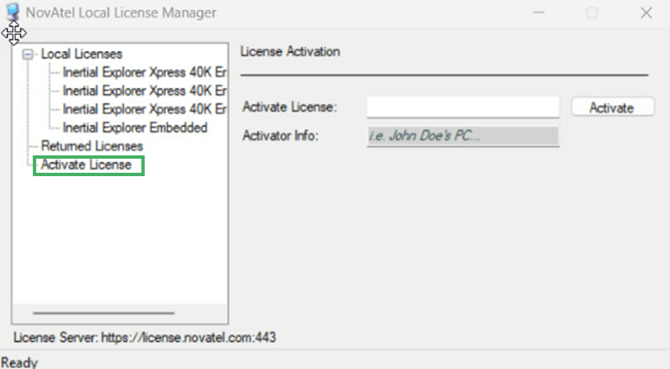
4. Paste the license code into the Activate License field and then fill in any name in the Activator Info box and click on Activate.
How to recall the LIDAR license Key for use on another device
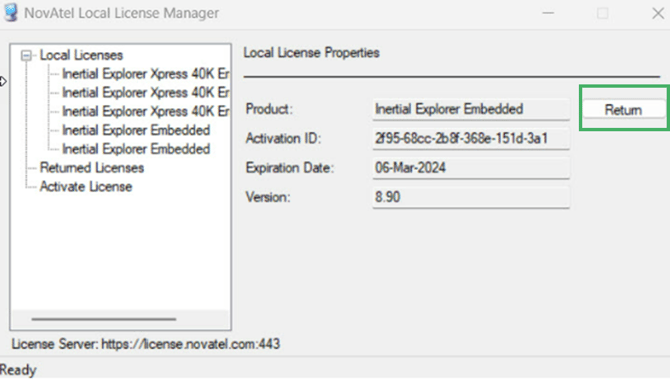
To activate the license on another computer, it must be released from the current device. To do this, locate the same Local License Manager dialog and click Return on the local license with a valid, non-expired date to free it up. Then, the license can be activated on another device.
If you require an offline activation, please contact Wingtra support.
Download of the latest sw version shows error with the license server
If you receive an error during the download process, please uninstall the Wingtra LIDAR app and then re-install it.
➡️ Read next: Processing Data in Wingtra LIDAR App