
LIDAR licenses can be assigned to drones using the Customer Portal or during the drone activation process
If you received the LIDAR unit from your dealer, your dealer should have assigned the LIDAR license to your drone and registered the payload already. In that case, the LIDAR license should be displayed and set to “Activated” in the System Overview page of WingtraPilot.
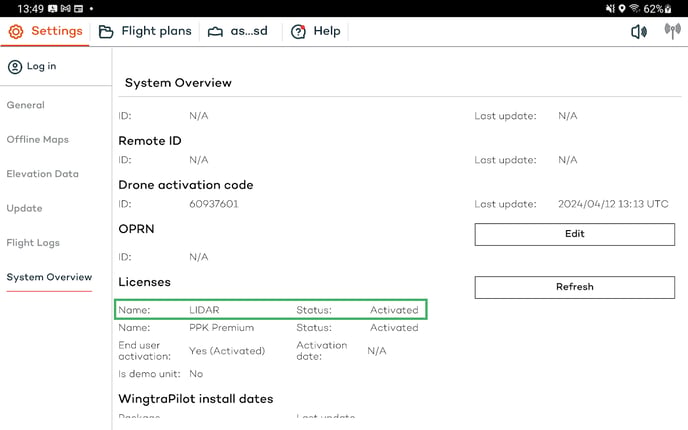
If this is not the case, you can assign the license and register the payload yourself on my.wingtra.com, following the drone activation process. Your dealer can provide the LIDAR license key. If you purchased the LIDAR unit directly through Wingtra, you should have received an email with the LIDAR license key when the shipment was cleared. The subject of the email is "Your Wingtra LIDAR license".
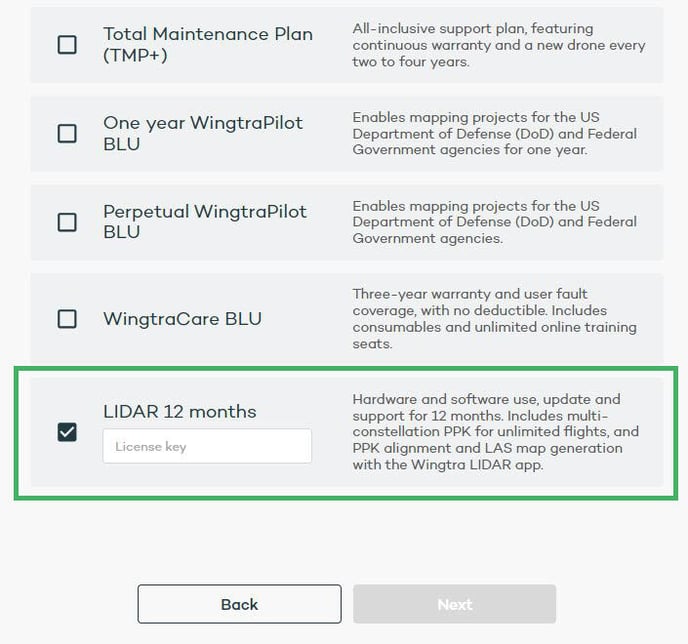
Once the Wingtra LIDAR activation is completed, an email containing the license key to activate the Wingtra LIDAR application will be sent to the contact associated with the configured drone ID.
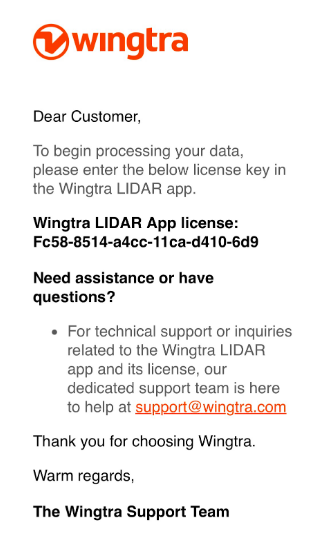
More information on how to activate the Wingtra LIDAR application can be found in the article: Install and activate Wingtra LIDAR application.
Please allow up to 15 minutes after the configuration step for the WingtraOne LIDAR license to register in our system, before confirming the activation status in WingtraPilot.