
All WingtraOne GEN II drones are equipped with a PPK system that allows for accurate surveys without ground control points. Activation of this PPK system is done in software and involves:
- purchase of the PPK license - if you do not have a license yet and would like to purchase a Wingtra PPK license. Please contact the Wingtra Support team at support@wingtra.com.
- assigning the PPK license to the drone
Requirements for the activation steps:
- PPK license provided by Wingtra
- The license is formatted as a number with 10 digits - e.g. 0123456789
- The Wingtra PPK license is sent via email. You can search your inbox for the license by typing the email subject "Your Wingtra PPK license".
-
- Your WingtraOne and an established connection between the drone and the tablet.
- Internet connection on the tablet.
Step 1. Assign the PPK license on the drone
PPK licenses can be assigned to drones using the Partner Portal or during the drone activation process.
Partners can assign a PPK license to a drone during the drone configuration process. Additionally, PPK licenses can be removed from drones and transferred from one drone to another through the Partner Portal. Learn more about how to do it in the Drone configuration for partners article.
Active licenses are displayed when activating a drone, and more licenses can be added to a drone as long as the license key is available.
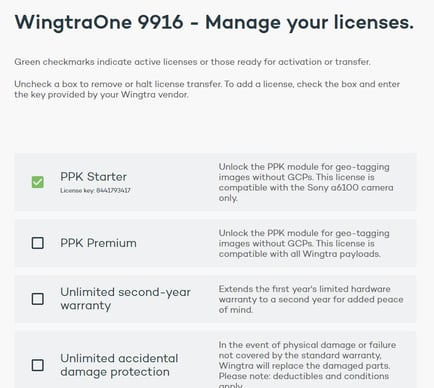
Before proceeding to Step 2. please allow up to 15 minutes for the WingtraOne PPK license to register in our system.
Step 2. Confirm that the PPK license is active
- Access WingtraPilot on your tablet and connect to your WingtraOne.
- Make sure to have an Internet connection on your tablet.
- In WingtraPilot, navigate to Settings > System Overview and tap on the Refresh button.
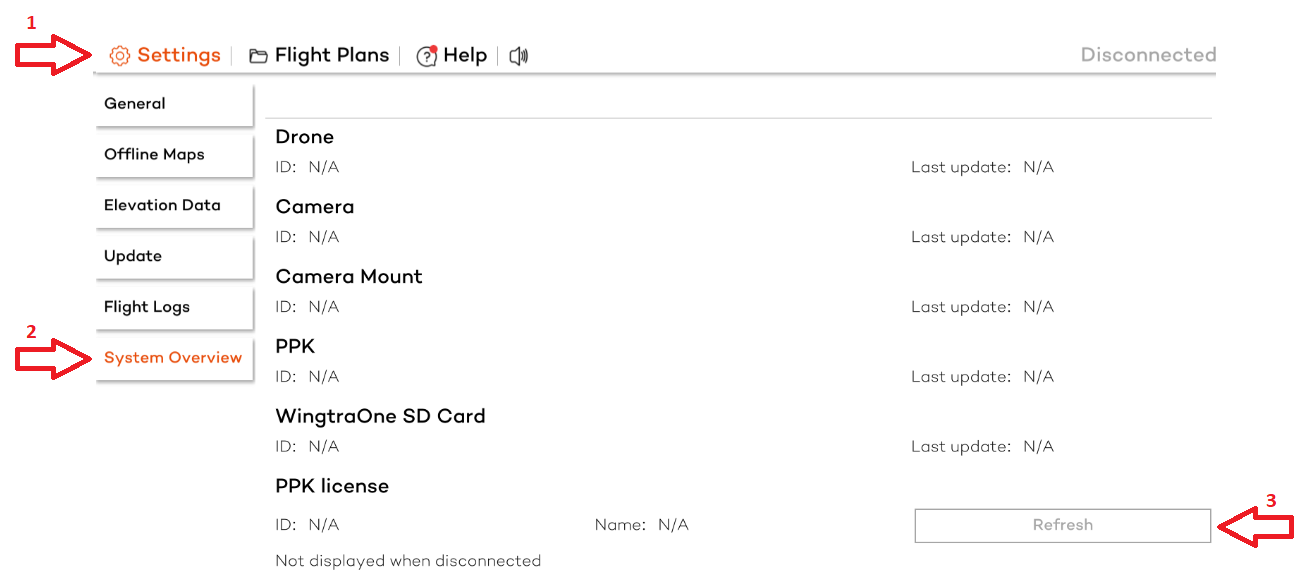
- WingtraPilot will recognize your previous activation on the web page and synchronize the PPK license with your drone.
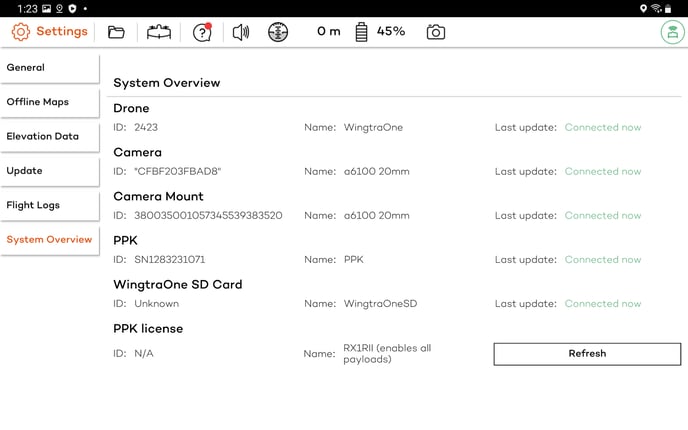
The WingtraOne PPK license is now permanently stored on your WingtraOne drone and the internet connection is no longer required.
If you are having difficulties with the activation of your license, please contact the Wingtra Support team at support@wingtra.com. Please provide the license key and a screenshot of the issue.