Skip to content
English
  • There are no suggestions because the search field is empty.

Changing from RGB to RedEdge camera

Learn how to change between RGB and multispectral cameras on your WingtraOne.

Time required 15 min
Difficulty Easy
Equipment WingtraOne, RedEdge camera and mount, TX10 75 mm Torx screwdriver, top cover with opening, flight batteries


This replacement is recommended to be carried out by all customers themselves. Wingtra's warranty is not affected by this replacement.

Step by step instructions

Step 1 Open the top cover and the PPK module
rebind2
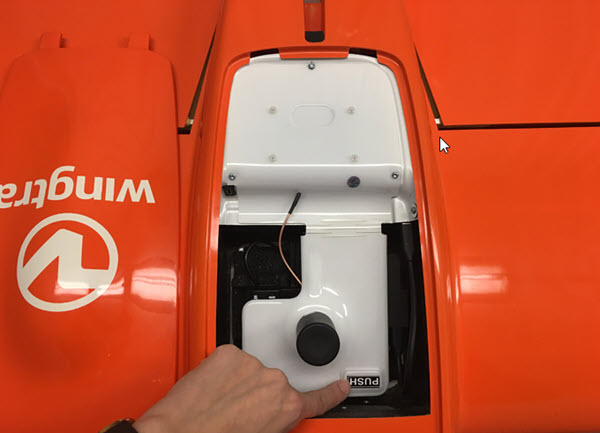
  • Power off the WingtraOne and lay it down on a flat surface, e.g. a table, with the nose pointing at you.
  • Open the top cover.
  • If applicable: Open the PPK cover pressing on the PUSH button.

Step 2 Remove the RGB camera

step6-2

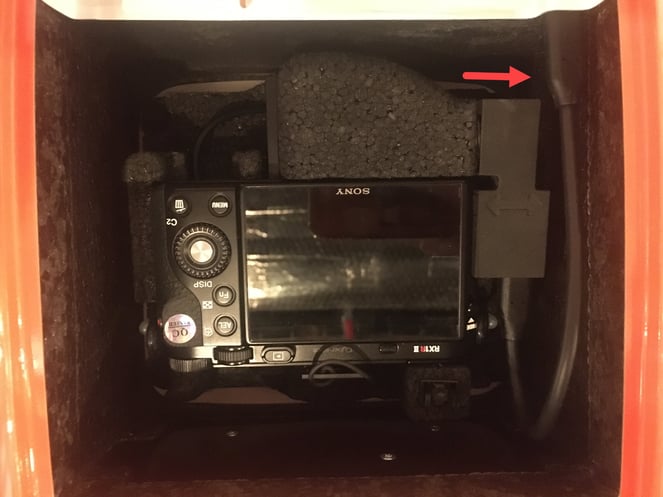
  • Unplug the USB-C universal payload connector at the top right by pulling the cable out.

RX1_mount_outside_screws-1

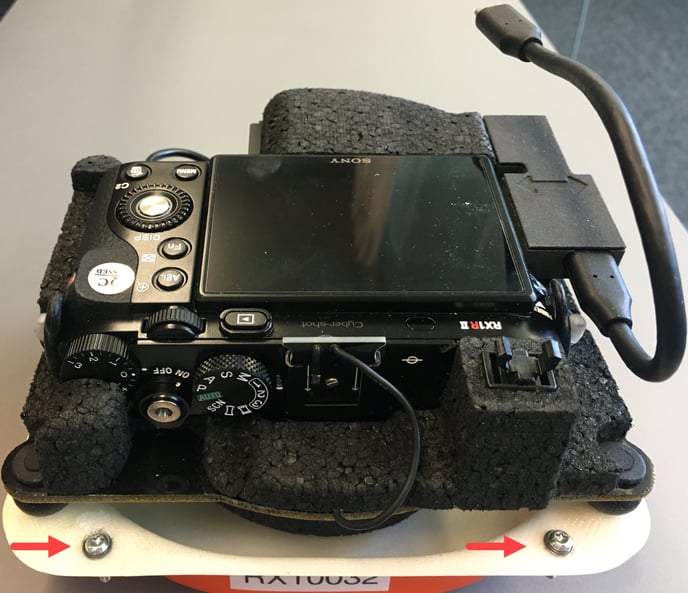
  • Use the TX10 Torx screwdriver to unscrew the four screws in each corner of the payload area.
💡 The screws are attached to the camera mount. You do not need to worry about losing them inside.
  • Lift out the camera mount assembly by pushing it from the lens side and slightly tilting it.

Step 3 Insert the new camera

RedEdge_inside_screws

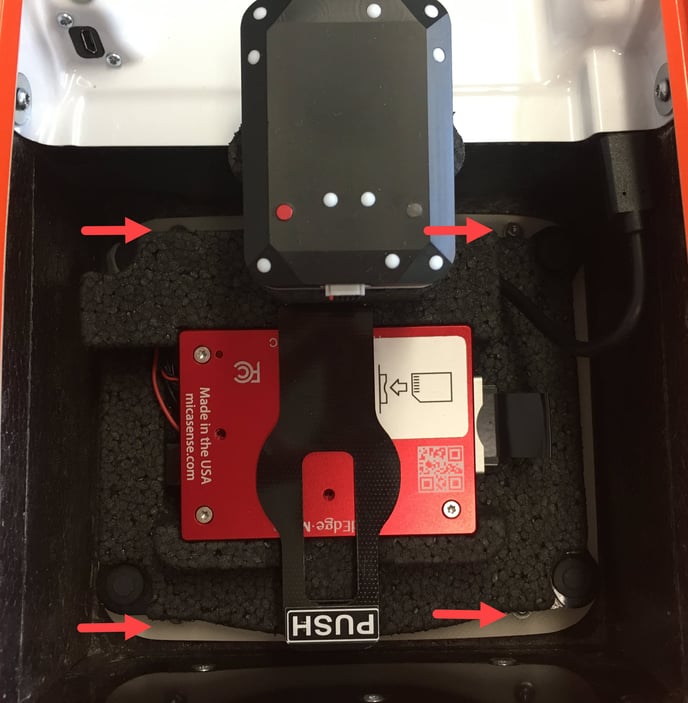
  • Insert the RedEdge camera with the mount.
  • Tighten the screws in the four corners using the TX10 Torx screwdriver. Make sure you don't overtighten them as they might damage the hole on the mount (maximum torque 0.4 Nm - use two fingers tightness).

RedEdge_inside_sd_USB

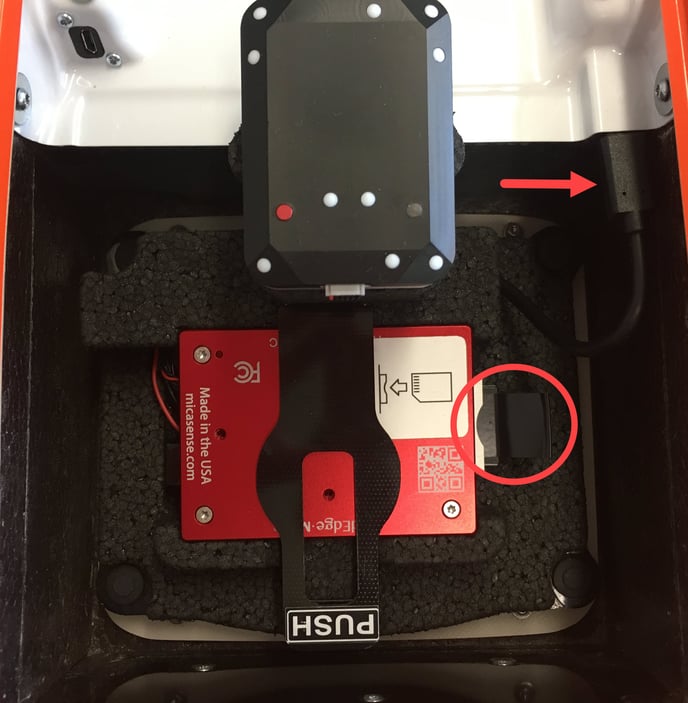
  • Plug in the USB-C universal payload connector at the top right.
  • Make sure that the SD card is inserted inside the camera, as indicated with the circle.
💡 If changing from QX1 to RedEdge camera, remove the Software update SD card adapter from the micro USB connector on WingtraOne.


Step 4 Close the top cover

RedEdge_cover

  • Take the new top cover with the cutout and close the WingtraOne payload area.

Step 5 Finalize the RedEdge camera setup

  • Power on WingtraOne.

  • Open the WingtraPilot app and connect the telemetry antenna to connect to WingtraOne.

  • Create a new flight plan and make sure to select the right camera when going 
    through the wizard.

  • The RedEdge camera will be detected and WingtraPilot will prompt you to repower WingtraOne to initialize it correctly.

  • Confirm by clicking "Yes" and repower the WingtraOne to finalize the camera setup.