

🔗 Link to tool
https://wingtra-lidar-point-cloud-tool.vercel.app/
✋ Best Practices & Limitations
Recommended for Demos, customer presentations, quick visualizations.
Not recommended for High-precision survey results or final data processing (Use 3rd party LiDAR tools for that)
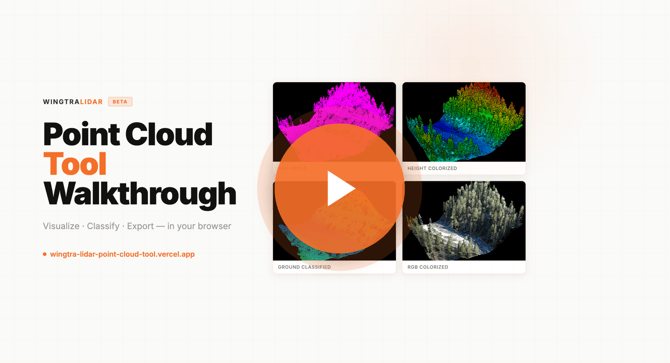
▶️ Walkthrough Video
🚀 Getting Started
You can load a point cloud file in two ways:
- Drag and drop a
.lasfile into the interface - Or click the upload button and select a file manually
Once loaded, the tool immediately provides a summary of your dataset, including:
- Number of points
- Height distribution
- Basic validation to confirm correct file reading
This allows you to quickly verify that your data is intact before proceeding.
📺 Viewer Mode
Simple viewer to inspect point clouds and/or presenting data to customers
Controls:
- Right-click + drag → Move
- Left-click + drag → Rotate
- Fullscreen mode → For presentations or large displays
- Auto-rotate → Automatically spins the model (can be toggled off)
Display Settings:
- Adjust point size depending on your screen resolution
- Modify preview resolution to match your browser performance
🏔️ Height Colorizer
The Height Colorizer assigns colors based on elevation.
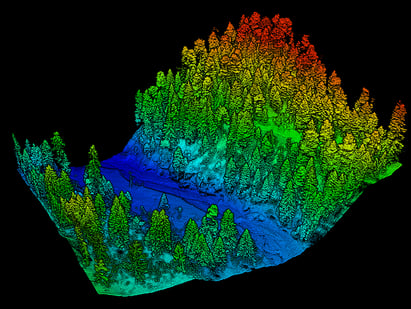
How it works:
- Select the tool
- Wait a few seconds for processing
- The point cloud is automatically colorized by height
Customization:
- Adjust the color ramp filters to highlight specific elevation ranges
🏝️ Ground Classification
Separates ground points from non-ground elements (vegetation, buildings, etc.)
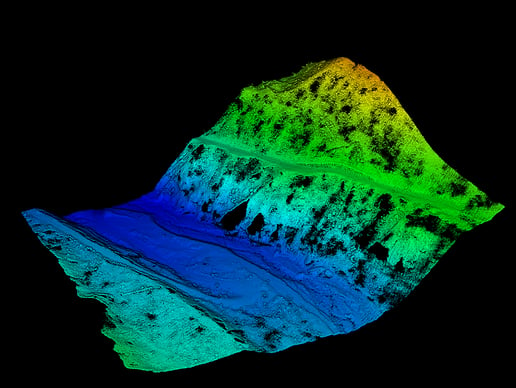
This is a beta feature:
- Suitable for demos and visualization
- Not recommended for professional survey workflows
Parameters:
Grid Cell Size - Controls the size of the grid used to analyze the terrain.
- Smaller values (↓), More detail, better detection of small terrain variations, slower processing
- Larger values (↑), smoother terrain approximation, faster processing, Less sensitivity to small features
Recommended values: Hilly or complex terrain: 1–3 m, Flat terrain: 3–6 m
Max Ground Thickness - Defines how much vertical variation is still considered “ground.”
- Lower values (↓), Strict classification, only bare earth is considered ground, buildings and vegetation are more likely excluded
- Higher values (↑)More tolerant classification, includes low vegetation (e.g. grass, small bushes), risk of misclassifying objects (e.g. roofs) as ground.
Tip:
If too many buildings or elevated objects are classified as ground, reduce this value.
Surface Smoothness - Controls how smooth the resulting ground surface is.
- Lower values (↓), Peserves rough terrainKeeps sharp variations, may result in noisy or spiky ground
- Higher values (↑), Produces a smoother, rolling surface, reduces noise and spikes, may oversimplify complex terrain.
Tip: If your ground surface appears noisy or spiky, increase smoothness.
Accuracy Passes - Number of iterations used to refine the ground classification.
- Fewer passes (↓), faster processing, lower accuracy
- More passes (↑), higher accuracy, better refinement of ground detection, slower processing
Recommended usage: Large datasets: Start with 1–2 passes, Final refinement / smaller datasets: Use 3–4 passes
📸 RGB Orthophoto Colorizer
Adds real RGB color to your point cloud using an orthophoto.
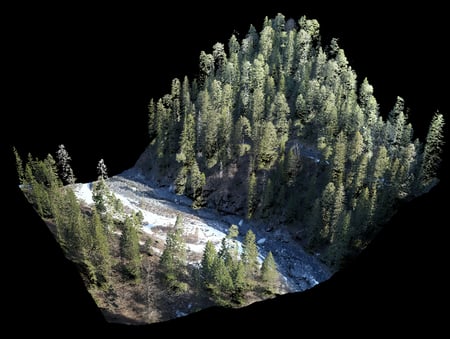
GeoTIFF orthophoto and .las must be in the same coordinate system
💾 Performance & Processing
- All processing happens locally in your browser
- No files are uploaded to any server
- Performance depends on:
- Your computer’s RAM
- Dataset size
- Browser capabilities