How to access WingtraCLOUD?
1. Create your account
The first person in the company to get access to the account will receive an invitation code from Wingtra. This code can be used to create an organization within WingtraCLOUD.
Information on how to create a new organization can be found in the article How to create a WingtraCLOUD account.
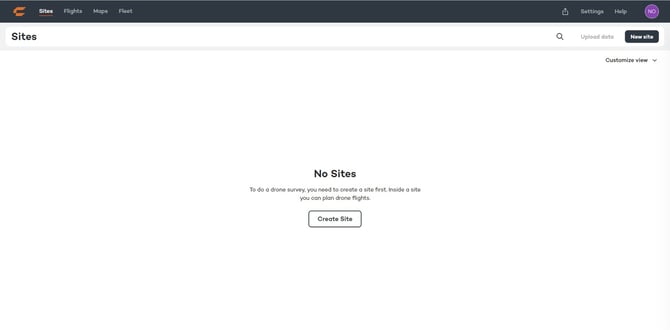
2. Login into cloud.wingtra.com/login. In order to start planning your flights first you will have to create a new site first.
How to invite users to the organization?
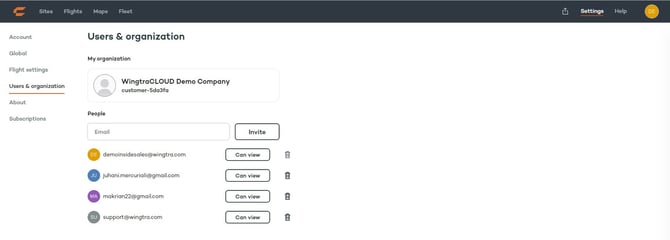
New users can be added to an organization by sending an invitation. Any member of the organization has the right to invite new users.
To invite a new user, go to Settings --> Users & organization.
How to check if you have the correct subscription plan?
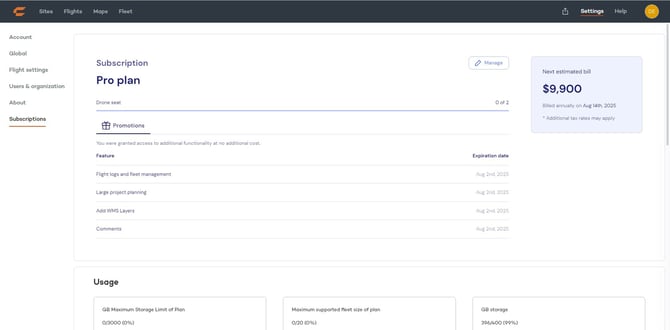
Under Settings --> Subscriptions users can see their current subscription plan as well as their data usage.
Define the measurement units and default flight settings
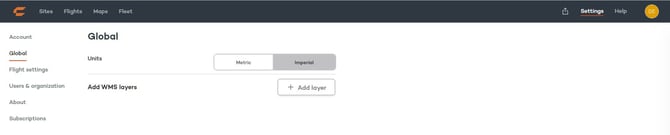
Select between metric and imperial units under Settings --> Global.
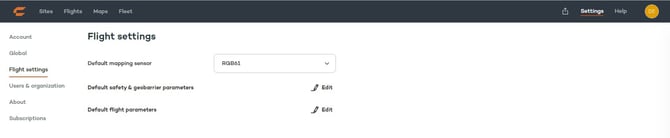
Under Flight settings you can define the default mapping sensor, safety & geobarrier parameters as well as default flight parameters. These parameters can be changed for individual flight plans.
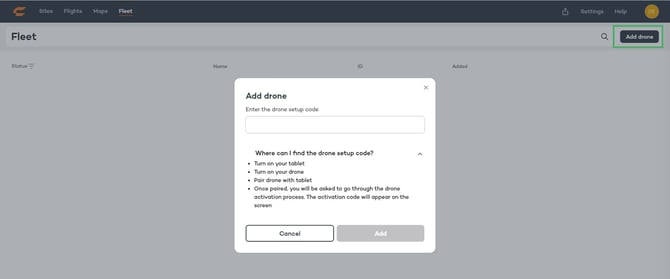
How do I add a drone to my account?
To add a drone to your account navigate to the Fleet tab and insert the setup/activation code of the WingtraOne you wish to add.