Note: the standard process to update WingtraRAY and WingtraOne is described in this article: Update Wingtra drones with wireless firmware updates (OTA)
In order to perform the update process you need:
- Tablet with Wingtra App (Premium Tablet, Tab Active 5 PRO or Tab Active 3)
- WingtraRAY or WingtraOne drone
Step 1: Update Wingtra App to the latest release
- Start the Tablet and connect to internet
- Wait for 2 minutes, you will get an automatic notification about a new release
- Update the app
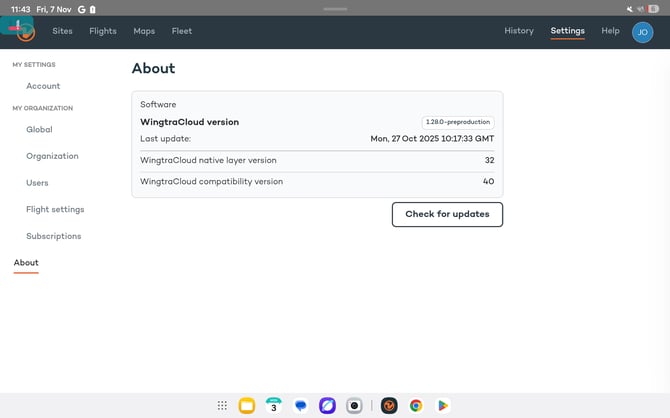
- Check version (Settings → About)
Step 2: Update WingtraRAY or WingtraOne
- Power on your drone and establish telemetry connection.
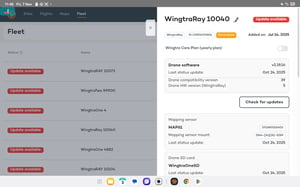
- Wingtra App shows you a pop up whenever a new release is available for a drone in your fleet page. Make sure that your drone is showing up in the fleet page.
- Follow the instructions in the pop up.
- If you don't get an update pop up, try restarting the Wingtra App.
FAQ & Troubleshooting
During the update process, after reinserting the SD card and repowering the drone, the process is not continuing. What can I do?
For WingtraRAY:
- Power on the drone without the SD card inserted .
- Wait until the preflight checklist shows: “Drone SD card: not discovered.”
- Insert the SD card after this warning appears.
- Proceed with the update process.
If the app still does not prompt the drone update, please follow these steps:
- Verify that the SD card check is successful in the preflight checklist
- Format the SD card and recopy the update file from the tablet
- Check the content of the SD card and confirm that it contains the update (.wup) file package
- If the file is missing, download the latest update file from this folder and copy it to the drone SD card
- Properly eject the SD card from the tablet / computer after copying the update file package
- Repeat power up sequence as described above
For GEN II:
- Verify that the SD card check is successful in the preflight checklist
- Format the SD card and recopy the update file from the tablet
- Check the content of the SD card and confirm that it contains the update (.tar) file package
- If the file is missing, download the latest update file from this folder and copy it to the drone SD card
- Properly eject the SD card from the tablet / computer after copying the update file package
- Insert the SD card when the drone is unpowered, then power on the drone
The WingtraRAY bundle includes 3 years of software updates. What happens afterwards?
- You can continue to operate your drone after year 3 but won't be eligible anymore for new software updates.
- Reach out to your local partner to buy "WR-OS-APPS-RENEWAL-1Y " or "WR-OS-APPS-RENEWAL-3Y" to keep getting software updates.
Wingtra forces me to update my app - can I skip this?
Updates become mandatory 4 weeks after release. This means that you can skip new updates for some time to still finish a job, but have to update rather quickly and stay on new releases.
Operating Wingtra drones on an outdated firmware version can lead to a loss of warranty if an incident occurs because of old software.
I can not take off with an error of incompatible software version
Each software version (Wingtra App and WingtraRAY firmware) come with a "compatibility version tag" that has to match between the two systems. Our newest software releases are always compatible.
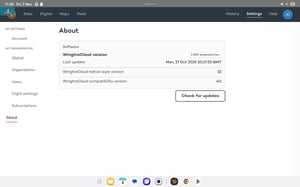
You can check the compatibility version of the App under "Settings > About" and of the Drone firmware under "Fleet > Your Drone > Drone software > Drone compatibility version":
 .
.