
On this page
- When should I use the SD card update?
- What do I need?
- How do I update the Wingtra App?
- How do I update the drone firmware?
- What if the update does not continue after I reinsert the SD card?
- Why can't I take off because of an incompatible software version?
- Can I skip an update?
- What happens after the three years of included WingtraRAY updates?
- What are the key rules to remember?
When should I use the SD card update?
The standard way to update WingtraRAY and WingtraOne GEN II is the wireless update. Follow Update Wingtra drones with wireless firmware updates (OTA). Use the SD card update in these cases:
- The wireless update fails or stops before it finishes.
- The drone firmware is older than the minimum version for wireless updates (WingtraRAY v2.21.14, WingtraOne GEN II 2.10).
- The drone has a Blue license. Drones with a Blue license can only be updated with an SD card.
Important: this article covers WingtraRAY and WingtraOne GEN II drones updated with the Wingtra App.
What do I need?
Have these ready before you start:
- A tablet with the Wingtra App (Premium Tablet, Galaxy Tab Active5 Pro or Tab Active 3)
- An internet connection for the tablet
- A WingtraRAY or WingtraOne GEN II drone with its SD card
How do I update the Wingtra App?
Update the app first, so it can prepare the latest drone firmware.
- Switch on the tablet and connect it to the internet.
- Wait about two minutes. The app notifies you when a new release is available.
- Update the app.
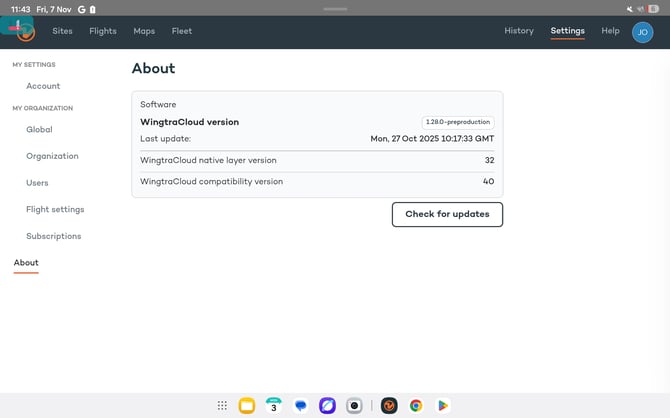
- Check the version under Settings → About.
How do I update the drone firmware?
The Wingtra App shows an update pop-up when a new release is available for a drone in your fleet.
- Power on the drone and connect it to the Wingtra App over telemetry.
- Make sure the drone shows on the Fleet page.
- Wait for the update pop-up.
- Follow the instructions in the pop-up.
If no pop-up appears, restart the Wingtra App.
What if the update does not continue after I reinsert the SD card?
Follow the steps for your drone.
WingtraRAY
- Power on the drone without the SD card inserted.
- Create a test flight plan and then select 'start flight setup'
- Wait until the preflight checklist shows "Drone SD card: not discovered".
- Insert the SD card.
- Continue the update.
If the app still does not show the drone update:
- Check that the SD card check passes in the preflight checklist.
- Format the SD card and copy the update file from the tablet again.
- Check that the SD card holds the update file package (.wup). If it is missing, download the latest update file from the update files folder and copy it to the drone SD card.
- Eject the SD card properly from the tablet or computer.
- Repeat the power-on steps above.
WingtraOne GEN II
- Check that the SD card check passes in the preflight checklist.
- Format the SD card and copy the update file from the tablet again.
- Check that the SD card holds the update file package (.tar). If it is missing, download the latest update file from the update files folder and copy it to the drone SD card.
- Eject the SD card properly from the tablet or computer.
- With the drone powered off, insert the SD card. Then power on the drone.
Why can't I take off because of an incompatible software version?
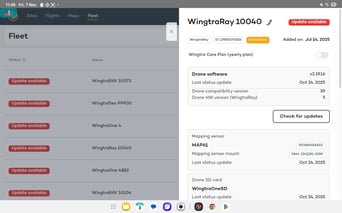
The Wingtra App and the drone firmware each carry a compatibility version tag, and the two must match. The latest releases are always compatible, so update both to the latest version. Check the versions here:
- Wingtra App: Settings → About
- Drone: Fleet → your drone → Drone software → Drone compatibility version
 .
Can I skip an update?
Updates become mandatory four weeks after release. You can delay an update to finish a job, but then update soon and stay on the latest release.
Important: flying a Wingtra drone on outdated firmware can lead to a loss of warranty if old software causes an incident.
What happens after the three years of included WingtraRAY updates?
The WingtraRAY bundle includes three years of software updates.
- You can keep flying your drone after year three, but you no longer get new software updates.
- To keep getting updates, buy a renewal from your local partner: WR-OS-APPS-RENEWAL-1Y (one year) or WR-OS-APPS-RENEWAL-3Y (three years).
What are the key rules to remember?
- Use the wireless (OTA) update first. Use the SD card update only when the wireless update is not possible.
- Update the Wingtra App before the drone firmware.
- Keep the app and the drone on the latest release so their compatibility versions match.
- Updates become mandatory four weeks after release.
- Flying on outdated firmware can put your warranty at risk.