
- Make sure the WingtraOne is not powered
- Disconnect the micro-USB cable from the RX1 camera
- Power on the WingtraOne using the flight batteries
- Verify that the camera is powered on
- On the camera press "Menu“
- Go to the trunk tab page 3, using the wheel button left/right
- Select "USB Connection“ by pressing the wheel button up/down and press the center button of the wheel
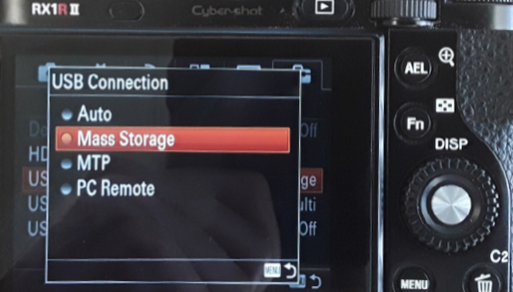
- In the submenu select "Mass Storage“ and press the center button again
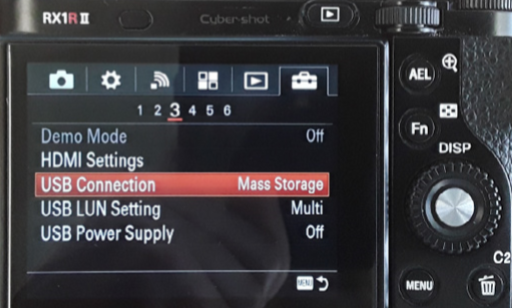
- Press the menu button to go back to the original screen
- Save the setting permanently with the following steps:
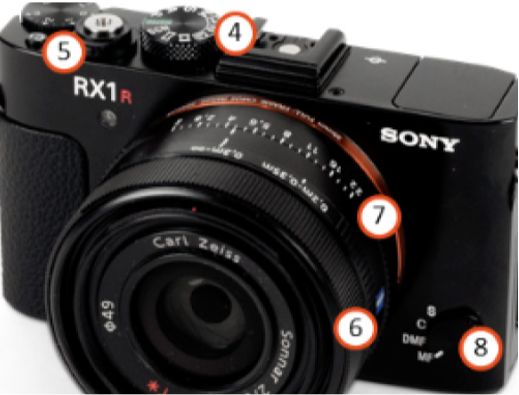
- Turn the camera off using the on/off switch (5) on top of the camera
- Wait 2 minutes
- Turn the camera on again using the on/off switch (5) on top of the camera
- Power off WingtraOne
- Reconnect the micro-USB cable to the RX1 camera
- Power on WingtraOne
- Open the WingtraPilot app and connect the telemetry module
- Check whether the camera icon turns black after approximately 1 minute