
Set up your Riebo D2M camera
The Riebo Oblique D2M is a powerful oblique imaging system consisting of five high-resolution-omnidirectional cameras, making it an ideal tool for large-scale 3D photogrammetry. It is mounted on a custom mount to
Camera settings
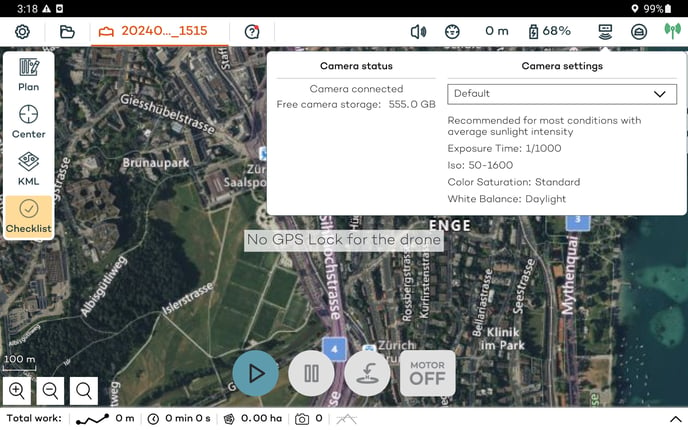
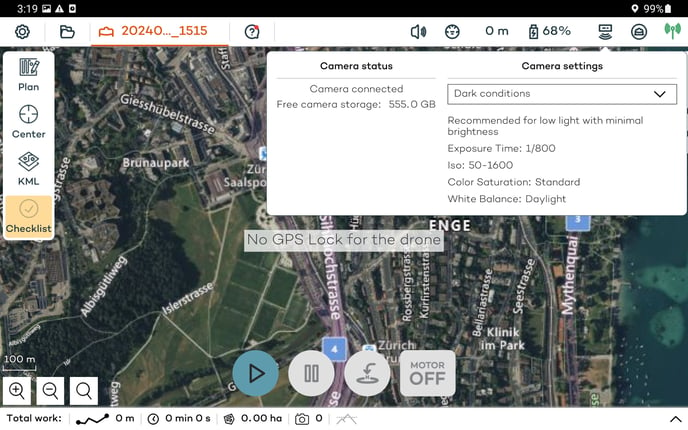
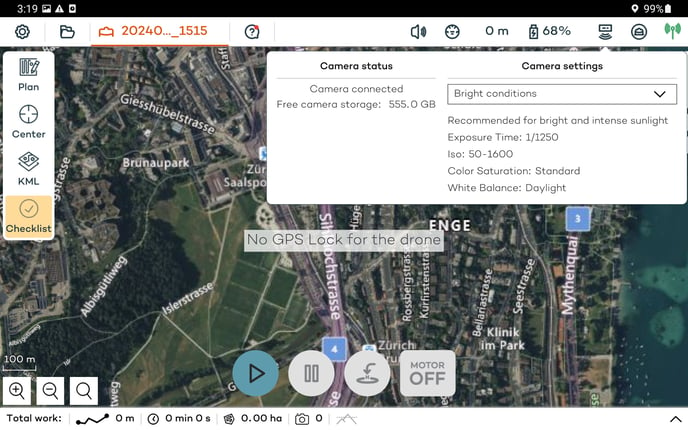
The camera settings of the WingtraOne D2M can be changed through WingtraPilot. There are predefined settings for better results in different general light conditions. To access the settings, you first need to turn on the drone. Then, open WingtraPilot on your tablet and connect the telemetry.
Once WingtraOne is connected to WingtraPilot, create a new flight plan and select Oblique D2M as the camera option. To change the camera settings, click on the camera icon and a tab pops up (see below image). Then, select the predefined setting based on the light conditions at that moment in the field.
Best practices for flying with the 5-lens oblique D2M camera
To achieve better results when flying with the Riebo D2M camera, please take into account the following tips:
- Frontal and side overlaps:
- Set the side overlap to 70%
- Set the frontal overlap to 70%
SD card
The Riebo D2M payload has 5 sensors on the camera, to allow faster trigger rate it has a custom SD card which contains 6 drives. One for each of the sensors and a sixth one containing the log files with the position of each image.
The SD card must inserted in the camera with the arrow facing up and the serial number facing down, as displayed on the images below.
Correct way: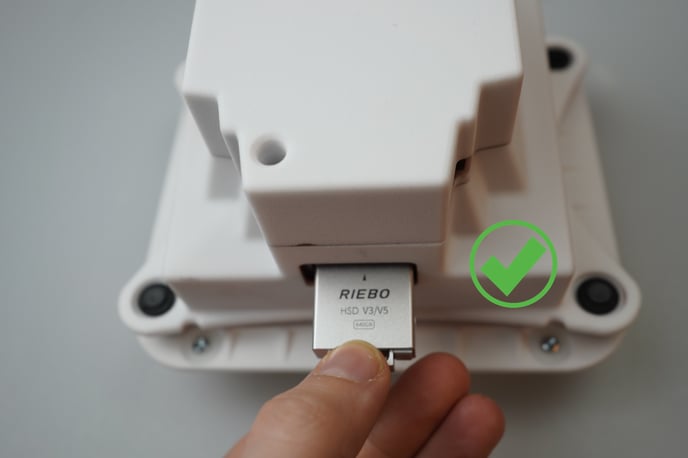
Incorrect way: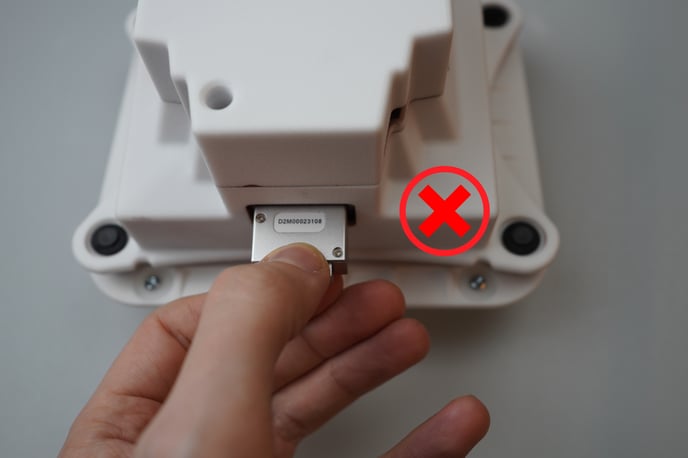
In case the SD card is inserted the wrong way, the user will not be able to insert the SD card fully in as displayed in the image below and once powered up the camera will start beeping continuously at regular intervlas.
Correctly inserted: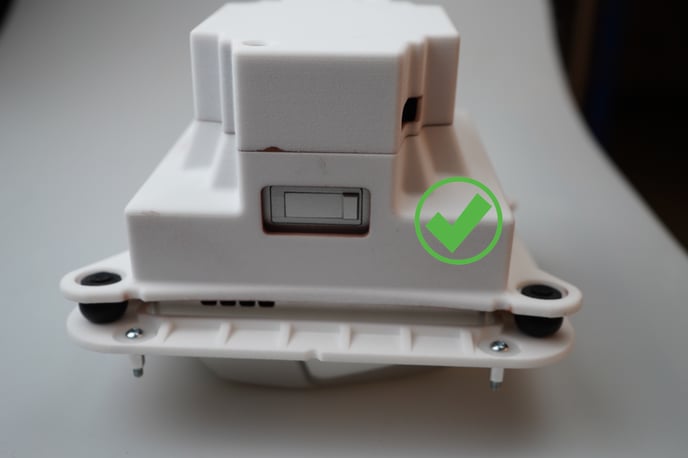
Wrongly inserted: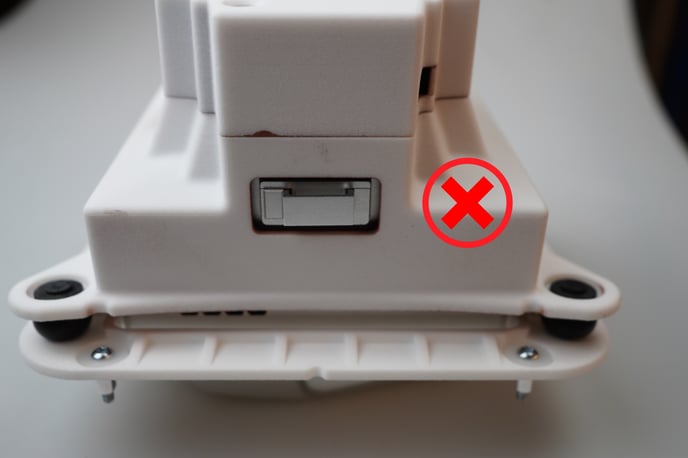
Audio recording of alarm:
Step-by-step instructions
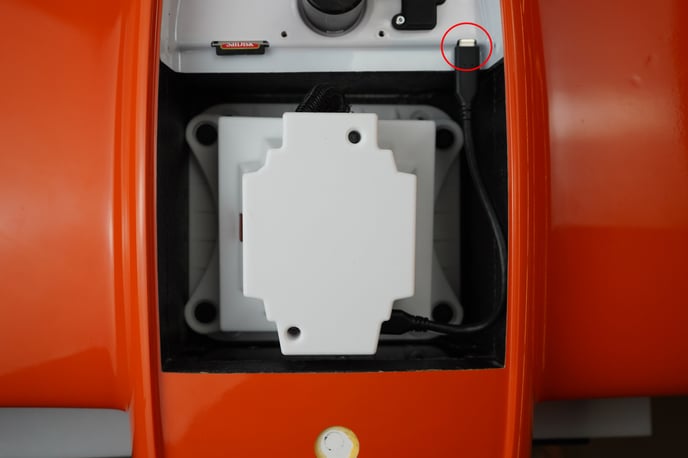
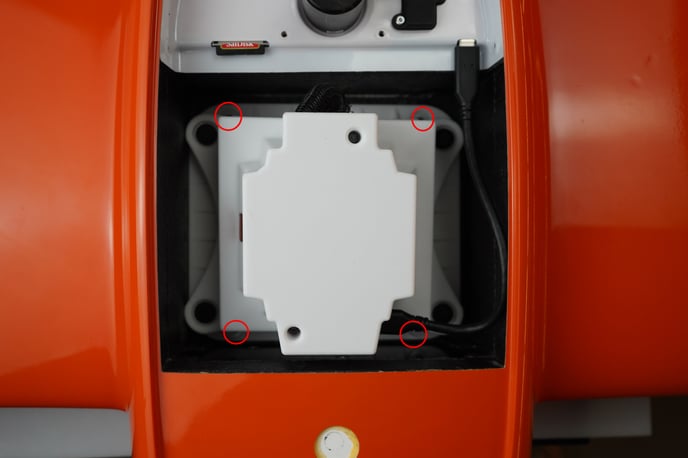
Step 1: Remove the D2M camera attached to the mount from WingtraOne GEN II
 |
|
|
|