
Check that everything is connected well
If the camera check in the pre-flight checklist fails and the error Camera: Not connected pops up, or the camera check stays orange for a long time, the camera is not recognized. This likely indicates that the USB-C cable that connects the camera to the WingtraOne drone is not plugged in properly. Unplug and re-plug the USB-C cable on the WingtraOne to resolve this issue.
Tablet camera icon
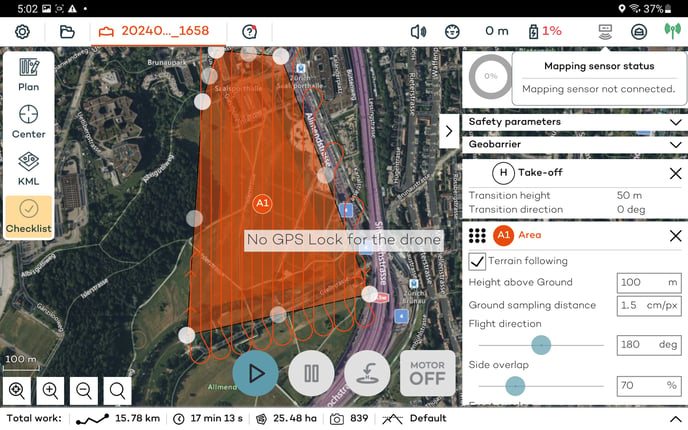
Please check the camera icon in the top right corner of the tablet screen. Wait for a few minutes until the green loading bar reaches the right side of the screen.
- Black
- Camera is connected
- Grey
- Check that the USB-C cable is connected to WingtraOne
- Contact Wingtra Support for further instructions if the icon remains grey
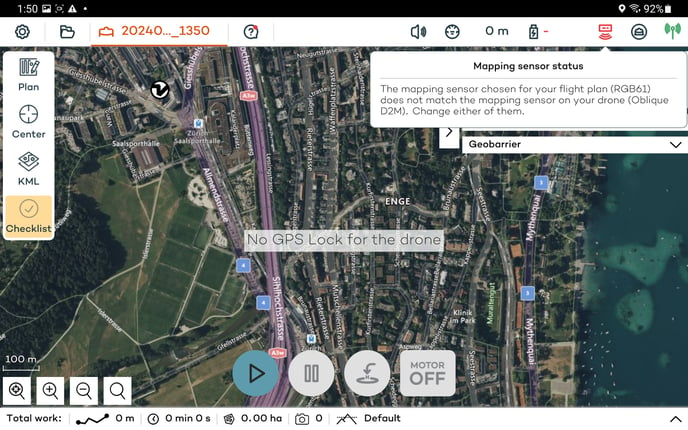
- Red
- Wrong camera type selected
- Create a new flight plan and make sure to select the correct camera type
Alarms coming from the camera
The Riebo D2M camera makes different sounds based on its state.
When it gets powered on you should here a long beeeeeeeeeeeeeeeeeeeeep as recorded below:
This should be followed shortly after by a succession of beeps, as recorded below:
Finally, about 20s afterwards you should here a sequence of two beeps, signalling that the camera is now turned on, as recorded below:
If the camera is malfunctioning it was continuously beep intermittently as recorded below:
If your problem still persists
After performing the above-stated debugging steps, please perform another test flight. In case the issue persists, please gather the data needed to fix your problem noted in the RGB61 data gathering process and submit a ticket. This way, we can resolve your problem as quickly as possible.