
Limit physical access
To protect against unauthorized retrieval of data from the WingtraOne Gen II, you need to ensure that only authorized users have physical access to the drone. This includes the ground station tablet and the telemetry module and any memory devices like SD cards that have been used to collect data on the drone, or for transfer of the data to and from the drone or ground station tablet.
Preventing physical access can also protect against malicious modifications to the drone or ground station.
It is important to regularly delete data on any storage that is no longer needed in order to protect it from unauthorized access or modification. This applies specifically to camera and drone SD cards after data collection or flight log retrieval.
Turn on encryption
You control the GEN II with the WingtraPilot (WiP). During all phases—pre-flight, flight and post-flight—the communication between WiP and the drone is happening over a telemetry connection.
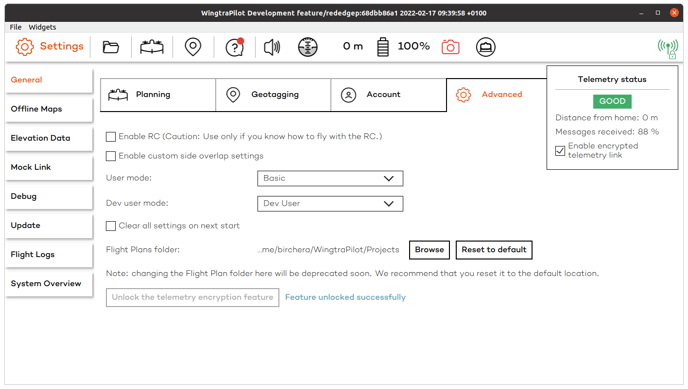
To protect the communication channel privacy, as well as prevent unauthorized parties from sending any commands to the WingtraOne GEN II, the telemetry encryption has to be turned on at all times.
The functionality of the ChaCha20 telemetry encryption with 256-bit security is visible on WingtraPilot as the small lock on the telemetry indicator in the top right corner of the screen.
Tablet password protection
The tablet-based ground station running the WingtraPilot app stores critical mission data, such as flight plans and terrain elevation data used during the flight. To ensure the integrity of the device, access is limited to authorized people by means of a password protection.
The tablet will guide you to set a password upon initial boot up, as follows:
- Click on Device screen lock setting to set a password
- You then have the option to choose between a PIN or a password; the password option is recommended
- The highest security settings of Samsung require a password with at least 6 characters, including at least one letter; we recommend using 12 characters, mixed with numbers and special symbols
Please note: For additional security, all data on the ground station tablet will be erased after 10 incorrect attempts to unlock. So if you forgot your password, please reach out to customer support.
Tablets shipped before September 2023:
Tablets shipped before this date do not feature these automatic settings yet, so they will not guide you to set a password automatically. To ensure the integrity of the device, we recommend limiting the access to authorized people through a password screen lock. To enable this, navigate on the Android system to Settings > Lock screen > Screen lock type.
Select Password and choose a strong key: We recommend again 12 characters, mixed with numbers and special symbols.
For additional security, we recommend going to Secure lock settings and enabling Auto factory reset.
Please note: All of the data on the ground station tablet will be erased after 15 incorrect attempts to unlock.
Tablet WiFi and Bluetooth
In order to disable WiFi and Bluetooth on the tablet it is recommended to enable the airplane mode at all times unless you are performing a workflow that requires either of the links.
MicaSense RedEdge-P, RedEdge-MX and Altum WiFi access
MicaSense payloads—RedEdge-P, RedEdge-MX and Altum—have built-in WiFi. Note that the password for the WiFi is the same on all cameras and documented in the user manual online, so protection around them is weak.
For these payloads, WiFi is only enabled before and after the flight to allow for changes to the camera image settings (e.g., exposure, channels, etc.) and taking of calibration images via the QR mode workflow. During flight, GEN II turns it off automatically.
Up next
Read about about the first steps with your WingtraOne GEN II in this article.
Or head back to the main Green and Blue UAS knowledge base page.