
WingtraPilot BLU license and telemetry encryption
You will need to purchase the WingtraPilot BLU license in order to make the Wingtra drone Green or Blue UAS compliant. This license enables telemetry encryption. Follow the instructions below to install the license and turn on the telemetry encryption between WingtraPilot and your drone.
It is the user's responsibility to make sure the encryption is turned on at all times to operate in compliance with Green or Blue UAS requirements.
Prerequisite
- Create your customer account and activate your Wingtra drone on my.wingtra.com
- Make sure you have updated your drone to the latest Green or Blue complaint software
You have two choices for license activation based on your air gap requirements:
1. Online Workflow (Moderate air gap requirement): Connect the tablet to the internet just once to load licenses. After that, no more internet connection is needed. Find Instructions here.
2. Offline Workflow (Strict air gap requirement): Load licenses using an SD card, without ever connecting the tablet to the internet. Find instructions here
Please note: Only the strict air gap(offline workflow) is in line with the DOD ATO requirements
Online Workflow (Moderate air gap requirement)
If you have already paired your drone and tablet, please click here
Pairing
- Make sure the WIFI is turned OFF on your tablet
- Start WingtraPilot
- Follow the process to pair your drone:
- Connect the telemetry to your tablet via the USB-C port
- Plug-in the batteries to the drone, the drone will beep indicating it has been powered
- Complete the pairing process and accept any terms & conditions :
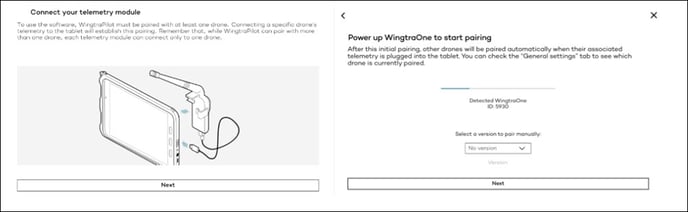
Download the licenses to the tablet
- Once you get to the below screen:
- Disconnect the telemetry (this will ensure the moderate air gap requirement for your drone is met)
- Turn ON the WIFI on your tablet and make sure you are connected to the Internet
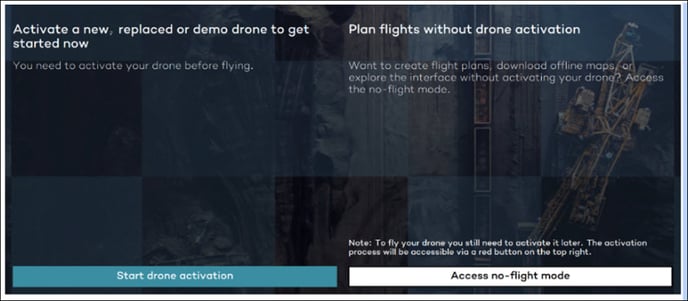
- Go to “Access no-flight mode”
- If you have followed the instructions to activate your drone, WingtraPilot will download and show the list of licenses including the BLU license by following this path:
- Go to Settings > System Overview > scroll down to licenses
- Here you can see the list of your activated licenses
- Go to Settings > System Overview > scroll down to licenses
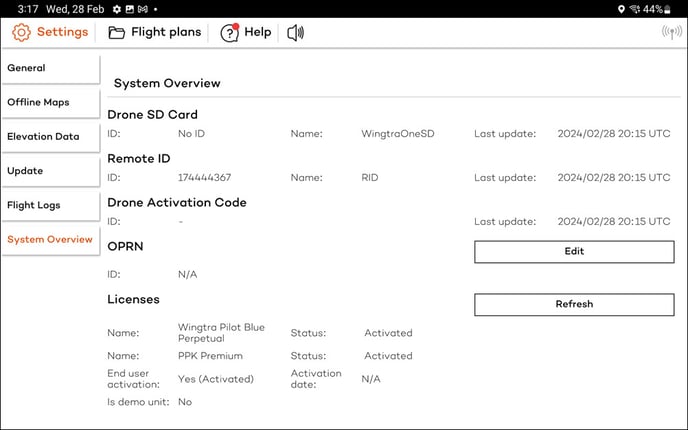
If it hasn’t worked and you see a drone activation screen, disconnect telemetry, make sure you are connected to the Internet, try “Refresh” again or restart the app.
Finalize encryption between the tablet and the drone
-
Turn OFF the WIFI on the tablet to ensure the air gap requirements are met
- Connect the telemetry module to the tablet
- Wait for the tablet to pair with the drone
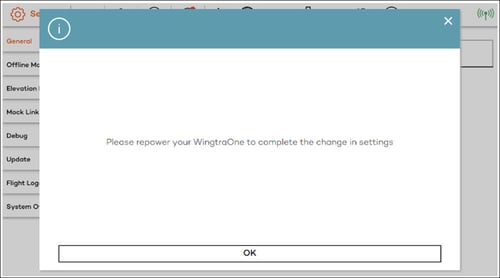
- You will see a pop-up “Please repower your drone”.
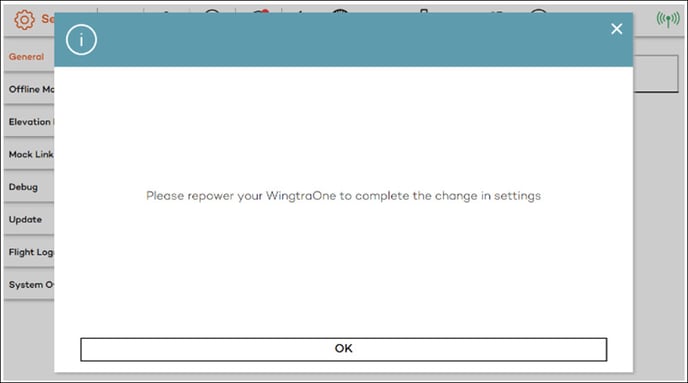
Troubleshooting: If you don't see the pop-up, you may need to reboot the drone or unplug/replug the telemetry module until the pop-up appears
- Reboot your drone by turning it off and on again (RAY: Power button, Gen II: Unplugging and re-plugging the battery cable.
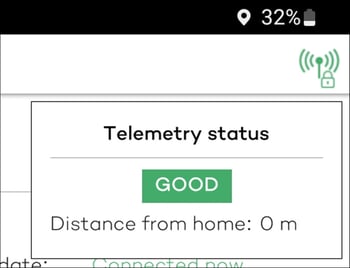
- After full pairing has been established, the lock icon will appear next to the telemetry icon. This confirms that the BLU license has been activated correctly.
Offline workflow (Strict air-gap requirement)
Your drone must have been paired with your tablet at least once:
- An encrypted file called "license.csv" along with a "signature.bin" file is attached in a ZIP to an email you received from your vendor, titled: 'Your WingtraPilot BLU license files and activation code.'
If you have not received the mentioned email from Wingtra or from your vendor, please reach out to support@wingtra.com
- Take the SD card from your drone (RAY: located next to the battery slot, Gen II located next to the PPK antenna), extract the ZIP file and copy the "license.csv" and "signature.bin" files from your computer to the SD card using the USB-C adapter.
- Connect the SD card to the tablet using the SD card to USB-C adapter
- Navigate to the file system and locate the SD card "USB Storage"
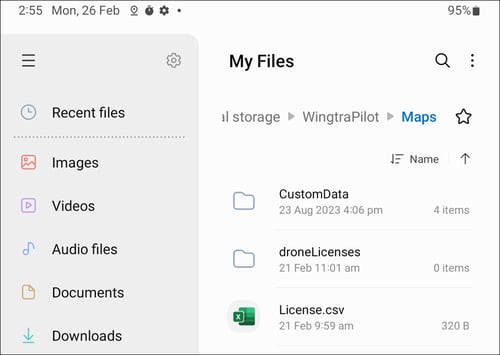
- Copy the license and signature files into the Maps folder of WingtraPilot (Internal Storage > WingtraPilot > Maps)
- If a file with a similar name already exists, delete and replace it with the new file you received from Wingtra support or your vendor.
- Eject, then unplug the USB-C adapter and put the SD card back into the drone
- Power on the drone and and connect the telemetry to the tablet. Then open WingtraPilot.
- Wait for the pop up to activate licenses, chose "start drone activation" and select "Start BLU drone activation (without internet)"
- Click "check activation status", make sure that the licenses are listed, and click "Next".
- Confirm the license activation by navigating to Settings -> System Overview
Troubleshooting
- If you do not see the license in the end, manually copy paste the licenses again to the Maps folder, restart the app, and try again.
Finalize encryption between the tablet and the drone
- When asked, reboot your drone by turning it off and on again (RAY: Power button, Gen II: Unplugging and re-plugging the battery cable.
- Confirm the activation of the telemetry encryption by ensuring there is a lock on the telemetry indicator in the top right corner of WingtraPilot, as displayed below:
- This confirms that the BLU license has been activated correctly.
- This confirms that the BLU license has been activated correctly.
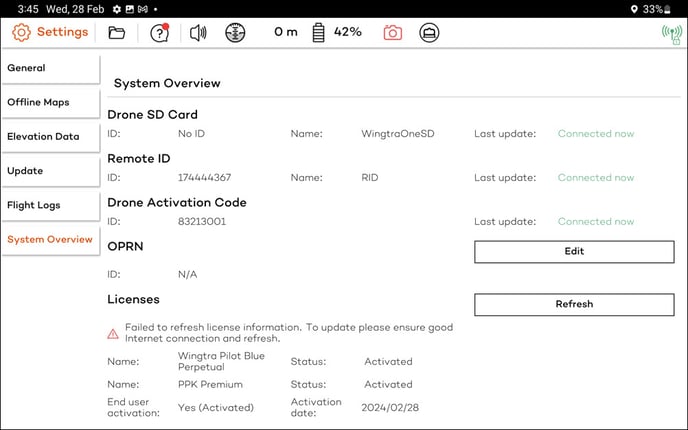
- You can as well verify licenses and encryption are activated by following this path while connected to the drone and will see the below licenses:
- Go to Settings > System Overview > scroll down to licenses
Note: If your tablet is never connected to the internet, you will not have access to maps and terrain in WingtraPilot. Please follow the offline maps workflow.
Next Step: Plan your flights
Read about how to plan your flights under Blue SUAS requirements in this article, or head back to the main Green and Blue UAS knowledge base page